





Microsoft OneNote has been around since 2003. That is over 20 years. For a long time, it was the go-to app for capturing notes, especially for people already using Microsoft Office.
But things have changed. Teams work differently now. More people need real-time collaboration, structured documentation, privacy-first tools, or just something that works well on mobile. OneNote was not built from the ground up for any of these things.
In 2026, Microsoft is also phasing out its legacy OneNote app for Windows 10. This has prompted many people to seek alternatives.
This post covers the best OneNote alternatives available right now. We reviewed tools for individuals, small teams, and large organizations. For each one, you will find what it does well, where it falls short, and who it is best suited for.
Why Are People Looking for OneNote Alternatives?
OneNote is not a bad tool. It is free, syncs across devices, and works well within the Microsoft ecosystem. But here is what people say when they start looking for something else:
- The interface feels cluttered and outdated
- Search does not always find what you need
- It gets slow when you have a lot of notes
- Collaboration features are limited
- It does not work as well outside of Windows
- Mobile apps feel like an afterthought
- No support for backlinks or knowledge graphs
- Formatting can be inconsistent between devices
These are fair criticisms. Most of them come up again and again in reviews and forum discussions. If any of them sound familiar, the tools below are worth looking at.
1. Notion — Best All-in-One Workspace

Notion, notes, databases, wikis, and tasks in one place
Notion is the most popular OneNote alternative in 2026. It has grown to over 30 million users, and it is easy to see why. Notion is not just a note-taking app. It combines notes, documents, databases, task management, and wikis into one workspace.
The basic idea is simple: everything in Notion is a page. Inside a page, you can add text, images, tables, to-do lists, kanban boards, or even embedded databases. You build the structure yourself, which gives you a lot of flexibility.
What makes Notion stand out
- Flexible structure: Everything is a building block
- Databases: Databases let you create tables, boards, calendars, and galleries from the same data
- Collaboration: Works well for teams with real-time editing and comments
- Templates: Over 10,000 community templates to get started quickly
- All-in-one: Combines notes, docs, projects, and wikis in one tool
Pricing
Notion has a free plan that works well for individuals. Paid plans start at $10 per user per month (Plus). The Business plan costs $20 per user per month and includes AI features. AI access is no longer available on lower tiers as of mid-2025.
Pros and cons
| ✓ What we like | ✗ What to watch out for |
| ✓ Very flexible and customizable | ✗ Takes time to set up properly |
| ✓ Generous free plan for individuals | ✗ Can feel overwhelming for new users |
| ✓ Works for notes, projects, and wikis | ✗ AI features locked behind $20/user plan |
| ✓ Great template library | ✗ No full offline support |
| ✓ Good mobile apps | ✗ Search can be slow with large workspaces |
Best for: Individuals and teams who want one tool for notes, documentation, task tracking, and wikis. Not ideal if you need offline access or simple quick notes.
2. Obsidian — Best for Personal Knowledge Management
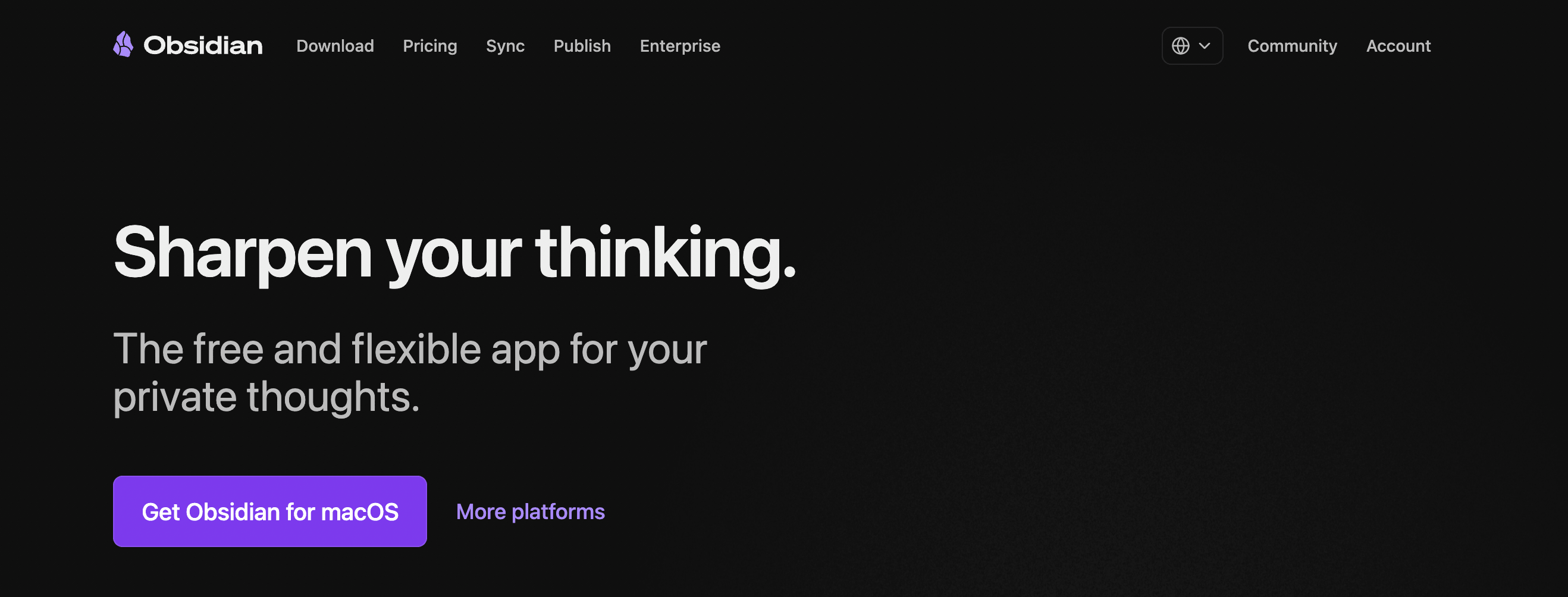
Obsidian, local-first notes with graph-based linking
Obsidian takes a different approach from most note-taking apps. Your notes are stored as plain Markdown files on your own device. There is no cloud dependency, no vendor lock-in, and no subscription required for the core app.
What makes Obsidian unique is its linking system. You can create connections between notes using wiki-style links, and then visualize all your notes and their relationships in a graph view. Over time, your notes start to look like a personal knowledge network.
It has a large plugin ecosystem with hundreds of community-built extensions. You can add calendars, task managers, spaced repetition tools, and much more.
What makes Obsidian stand out
- Local-first: Notes are stored as plain text Markdown files on your device
- Backlinks and graph view: Link any note to any other note and see your knowledge as a visual graph
- Plugin ecosystem: Hundreds of plugins to extend functionality
- Privacy by default: Your notes stay on your device unless you choose to sync
- Full offline support: Works without internet after installation
Pricing
Obsidian is completely free for personal use. All features, plugins, and themes are included with no limitations. Commercial use (for-profit organizations with 2+ employees) requires a license at $50 per year. Optional Sync costs $5 per month, and Publish (to share notes as a website) costs $10 per month per site.
Pros and cons
| ✓ What we like | ✗ What to watch out for |
| ✓ Free for personal use with full features | ✗ Steeper learning curve than most apps |
| ✓ Full offline access | ✗ Not ideal for team collaboration |
| ✓ Strong privacy — data stays on your device | ✗ No built-in cloud sync (paid add-on) |
| ✓ Powerful linking and graph view | ✗ Markdown can feel unfamiliar at first |
| ✓ Huge plugin community | ✗ Desktop-first, mobile is less polished |
Best for: Researchers, writers, and anyone who wants to build a long-term personal knowledge base. Not the right fit for team collaboration or non-technical users.
3. Evernote — Best for Capturing and Organizing Notes
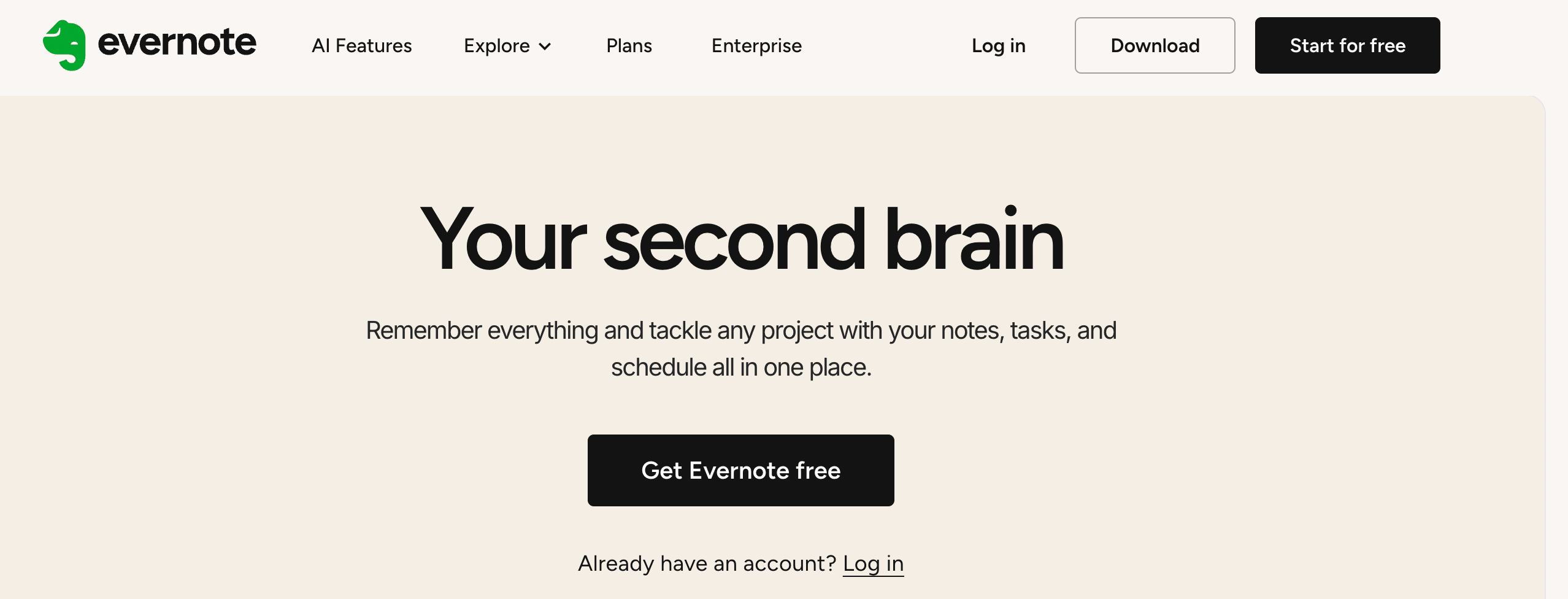
Evernote — capturing notes, web clipping, and organization
Evernote is one of the oldest note-taking apps still active today. It has been around since 2008 and still has a loyal user base. Its strength is in capturing information quickly from the web, from photos, from PDFs ,and making it all searchable.
The web clipper is one of Evernote’s best features. You can save entire web pages, articles, or just selections directly to Evernote from your browser. Evernote can even search for text inside images and PDFs.
However, Evernote is significantly more expensive than most alternatives. This is the biggest reason people look elsewhere.
What makes Evernote stand out
- Web clipper: Save web pages, screenshots, and files directly to your notes
- Powerful search: Find text inside PDFs and images, not just note titles
- Cross-platform: Works on desktop, web, mobile, and offline
- Notebooks and tags: Organize notes into notebooks and use tags for easy filtering
- Integrations: Connect with Slack, Google Drive, Microsoft Office, and Zapier
Pricing
Evernote’s free plan is very limited — one device and 60 MB of uploads per month. The Personal plan costs $14.99 per month, and the Professional plan costs $17.99 per month. Compared to Notion’s $10 per user per month, Evernote feels expensive for what you get.
Pros and cons
| ✓ What we like | ✗ What to watch out for |
| ✓ Excellent web clipper | ✗ Expensive compared to alternatives |
| ✓ Powerful search including inside PDFs | ✗ Free plan is very restrictive |
| ✓ Available on all platforms | ✗ Fewer templates than competitors |
| ✓ Good for capturing research | ✗ Limited project management features |
| ✓ Reliable and mature product | ✗ No real team collaboration tools |
Best for: People who need to capture a lot of content from the web and want strong search across all their saved material. Not the best choice for teams or budget-conscious users.
4. Confluence — Best for Dev Teams and Enterprise
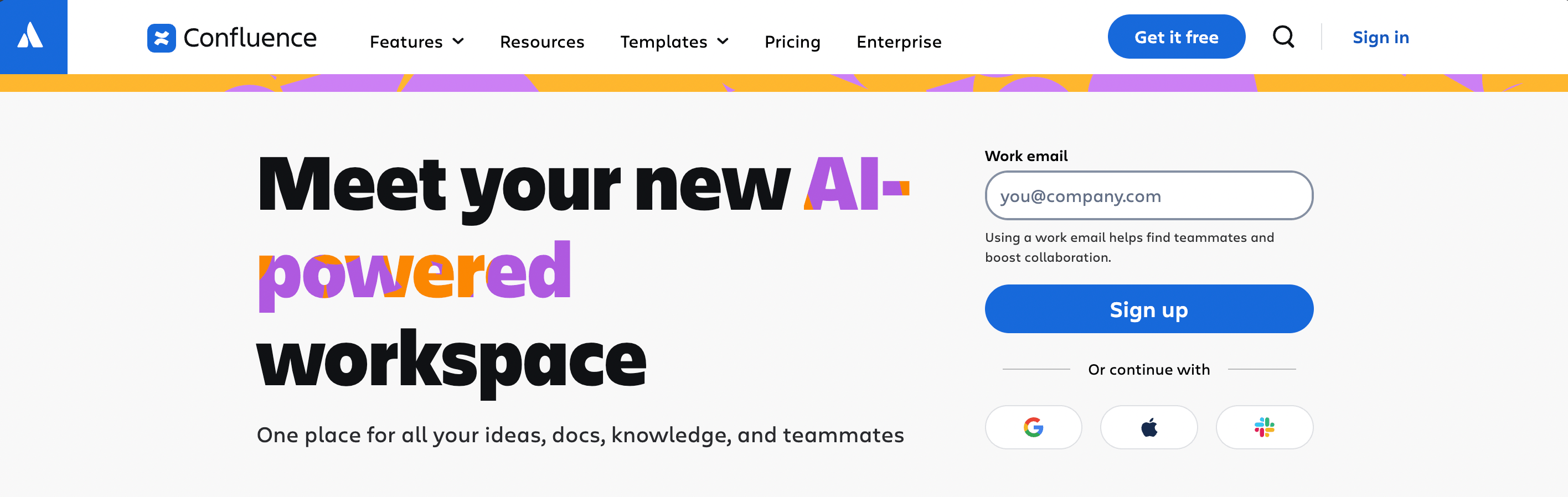
Confluence ,structured team documentation and wikis
Confluence is made by Atlassian, the same company behind Jira. It is built for teams that need structured documentation, especially software development and product teams. If your company already uses Jira, Confluence integrates directly into that workflow.
Unlike Notion, Confluence is more opinionated about how documentation should be structured. Pages live inside spaces, drafts are separate from published content, and version history is tracked carefully. This makes it a more controlled environment than most alternatives.
In late 2024, Atlassian added Rovo AI to all paid Confluence plans at no extra cost. This gives teams access to AI writing assistants and 20+ pre-built AI agents, which is better value than Notion’s approach of locking AI behind the most expensive tier.
What makes Confluence stand out
- Jira integration: Direct connection with Jira tickets and development workflows
- Structured publishing: Clear separation between drafts and published pages
- Built-in AI: Rovo AI included in all paid plans from $5.42 per user per month
- Enterprise-ready: Scales well for large organizations with many teams
- Deep ecosystem fit: Works best as part of the Atlassian ecosystem
Pricing
Confluence has a free plan for up to 10 users. The Standard plan starts at $5.42 per user per month (billed annually), and the Premium plan is $10.42 per user per month. For a 25-person team, that is $1,627 per year on the Standard plan — significantly cheaper than Notion Business for the same team size.
Pros and cons
| ✓ What we like | ✗ What to watch out for |
| ✓ Very affordable for teams | ✗ Less flexible than Notion |
| ✓ Rovo AI included in paid plans | ✗ UI can feel dated |
| ✓ Deep Jira integration | ✗ Not great outside the Atlassian ecosystem |
| ✓ Strong version control and page history | ✗ Learning curve for new users |
| ✓ Good for enterprise scale | ✗ Less suited for personal notes |
Best for: Software teams, product teams, and enterprise organizations already using Jira. Not the right tool for personal note-taking or small teams without a technical focus.
5. Google Keep — Best for Quick Notes and Google Users

Google Keep — fast, simple notes that sync with Google Workspace
Google Keep is the simplest tool on this list. It is designed for quick notes, reminders, and checklists. There is nothing complicated about it. You open it, write a note, and it syncs across all your devices.
The big advantage of Google Keep is how well it fits into the Google ecosystem. Notes can be shared through Gmail, edited in Google Docs, and accessed from any device. If you already live inside Google Workspace, Keep makes a lot of sense as a capture tool.
It is not built for complex documentation or long-form writing. But for fast, simple notes — shopping lists, meeting reminders, quick ideas, it is hard to beat.
What makes Google Keep stand out
- Simple organization: Color-code and label notes for fast organization
- Smart reminders: Set location-based or time-based reminders on any note
- Google integration: Works with Gmail, Google Docs, and Google Calendar
- Voice notes: Voice-to-text note creation on mobile
- Free forever: Completely free with no limitations
Pricing
Google Keep is completely free. It is included with any Google account.
Pros and cons
| ✓ What we like | ✗ What to watch out for |
| ✓ Completely free | ✗ No support for long documents |
| ✓ Very easy to use | ✗ Limited formatting options |
| ✓ Great Google Workspace integration | ✗ No Markdown support |
| ✓ Reliable sync across devices | ✗ Not built for team documentation |
| ✓ Good for quick capture | ✗ Basic and lacks depth for power users |
Best for: People who need a simple, free way to capture quick notes and already use Google Workspace. Not suitable as a OneNote replacement for complex documentation needs.
6. Joplin — Best Open-Source and Privacy-First Option
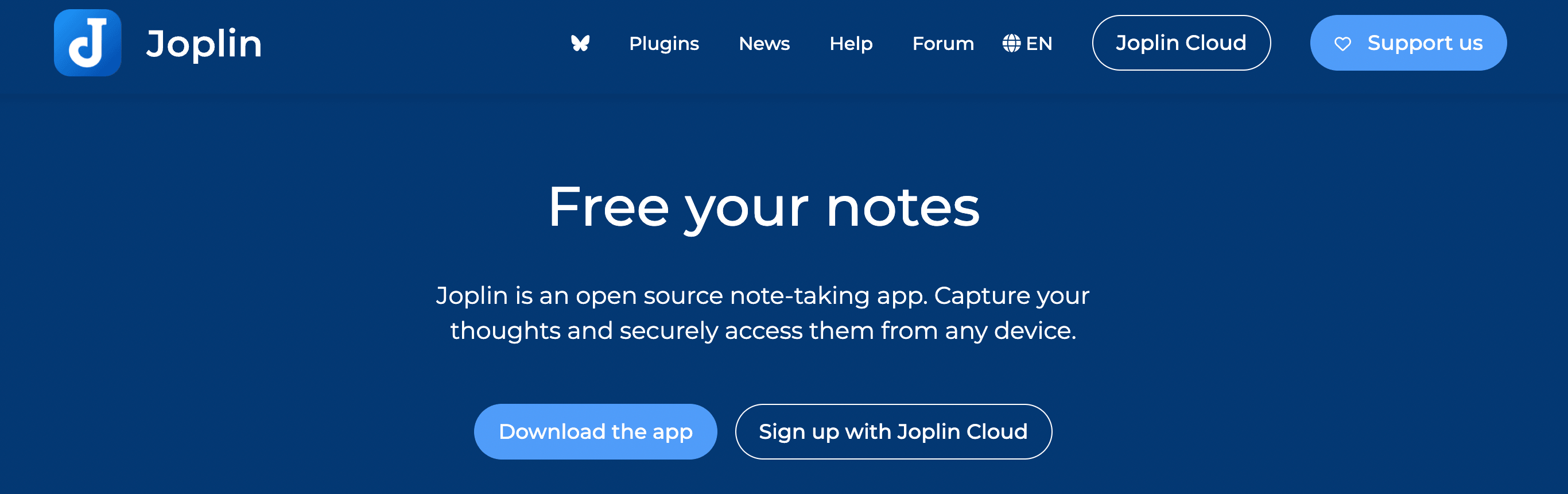
Joplin — open-source, encrypted, and fully portable notes
Joplin is an open-source note-taking app that stores notes as plain Markdown files. It is completely free, works on all platforms, and offers end-to-end encryption for sync. If you want the notebook-and-notes structure of OneNote without the Microsoft dependency, Joplin is the closest match.
You can sync Joplin notes through Dropbox, OneDrive, Nextcloud, or your own server. You control where your data lives. Nobody else can read it without your encryption key.
Joplin is not the most polished app visually, but it works reliably and the organization system notebooks, sub-notebooks, notes, and tags is familiar to anyone coming from OneNote.
What makes Joplin stand out
- Sync your way: Notes synced through Dropbox, OneDrive, or self-hosted storage
- End-to-end encryption: End-to-end encryption on all synced notes
- Portable data: Notes stored as plain Markdown files you can move or export any time
- Completely free: 100% free with no paid tiers or feature paywalls
- Cross-platform: Works on Windows, Mac, Linux, iOS, and Android
Pricing
Joplin is completely free. There are no paid plans. The desktop and mobile apps are free to download and use without any limitations.
Pros and cons
| ✓ What we like | ✗ What to watch out for |
| ✓ Completely free | ✗ Less polished interface |
| ✓ End-to-end encryption | ✗ Markdown can be unfamiliar for some users |
| ✓ Full offline access | ✗ No built-in collaboration features |
| ✓ Open-source and auditable | ✗ Setup is slightly more technical |
| ✓ Familiar notebook structure | ✗ Mobile app is less refined than desktop |
Best for: Privacy-conscious users, developers, and anyone who wants full control over their notes without paying a subscription. Not suited for team use or non-technical users.
Other Tools Worth Mentioning
These tools did not make the main list, but they are worth knowing about depending on your needs:
Coda
Coda is similar to Notion but with more built-in logic and automation. You can add buttons, formulas, and automation to your documents, making them behave more like mini-apps. It starts at $10 per user per month and has a free tier. Good for teams that want more interactive documents.
Simplenote
Simplenote does exactly what the name says simple notes with sync across devices. It is free, fast, and has version history. There is no formatting, no databases, and no complexity. If all you need is a plain text notepad that syncs, Simplenote works well.
Notion-like tools: AppFlowy and Anytype
Both AppFlowy and Anytype are open-source Notion alternatives. They give you more privacy and control over your data. AppFlowy stores data locally and is fully self-hostable. Anytype uses a peer-to-peer storage model. Both are worth checking if privacy is a top priority.
Bear (Mac and iOS only)
Bear is a clean, Markdown-based note-taking app for Apple devices. It has a beautiful interface and works well for long-form writing and research notes. There is a free version, and the Pro subscription costs $2.99 per month. It is limited to Apple devices.
Quick Comparison: All Tools at a Glance
Side-by-side comparison of OneNote alternatives
| Tool | Best For | Free Plan | Starting Price | Offline? |
| Notion | Teams & all-in-one | Yes | $10/user/mo | Limited |
| Obsidian | Personal & private | Yes (full) | Free / $50/yr | Yes |
| Evernote | Note capture & search | Yes (basic) | $14.99/mo | Yes |
| Confluence | Dev teams & enterprise | Yes (10 users) | $5.42/user/mo | Limited |
| Google Keep | Quick notes & Google users | Yes (full) | Free | Yes |
| Joplin | Privacy & open source | Yes (full) | Free | Yes |
| Coda | Docs + automation | Yes | $10/user/mo | No |
| Notion (AI) | AI-powered docs | Limited | $20/user/mo | No |
How to Pick the Right Tool for You
There is no single best OneNote alternative. The right tool depends on what you actually need. Here is a simple way to narrow it down:
Choose Notion if…
- You want one tool that handles notes, tasks, wikis, and project tracking
- You work with a team and need real-time collaboration
- You are willing to spend time setting up a workspace
- You need flexibility over structure
Choose Obsidian if…
- You want to build a long-term personal knowledge base
- Privacy and data ownership are important to you
- You are comfortable with Markdown
- You prefer offline-first tools
Choose Evernote if…
- You save a lot of content from the web
- You need strong search across notes, PDFs, and images
- You do not mind paying a higher price for a mature product
Choose Confluence if…
- Your team already uses Jira or other Atlassian tools
- You need structured documentation with version control
- You manage a larger organization or dev team
Choose Google Keep if…
- You need a free, simple, and fast note-capture tool
- You already live in Google Workspace
- You do not need formatting, databases, or complex organization
Choose Joplin if…
- You want complete privacy and control over your notes
- You need a free, open-source tool
- You are comfortable with Markdown and self-hosting
What About Documentation for WordPress Sites?
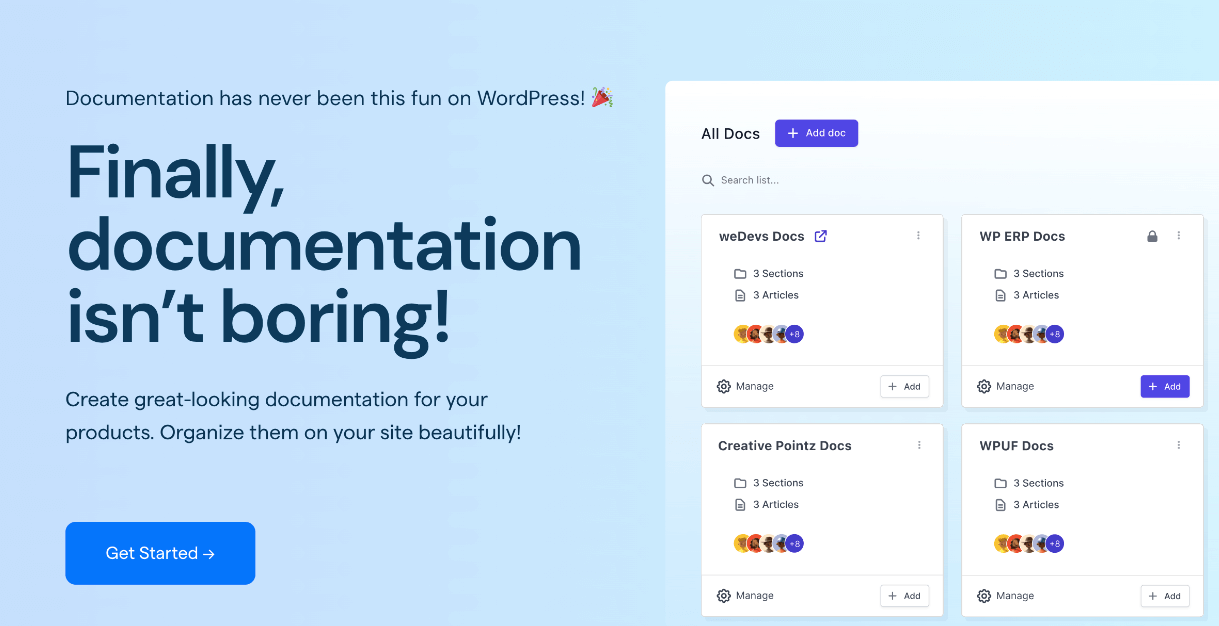
weDocs , structured documentation for WordPress
Every tool on this list is designed for one of two things: capturing your own notes or organizing information for your team. That covers a lot of use cases.
But there is one scenario none of them handle well: publishing structured documentation for your website visitors or product users.
If you run a WordPress site — a plugin, a theme, a SaaS product, an online store, or anything else, your users need answers too. They need a help center, a knowledge base, a user guide. Sending them to a Notion page or a Google Doc is not a good experience. It looks unfinished, and it takes them away from your site.
That is the gap weDocs is built to fill.
What is weDocs?
weDocs is a documentation plugin for WordPress. It lets you build a complete knowledge base directly inside your WordPress site, with no separate platform, no monthly SaaS fee, and no coding required.
You write your documentation the same way you write posts in WordPress, using the Gutenberg block editor. You organize docs into sections, subsections, and articles. weDocs handles the navigation, search, and layout automatically.
The result is a clean, searchable documentation section that lives on your own domain and matches your site’s branding. Your users never have to leave your website to find help.
weDocs is used on over 30,000 websites. It has been in active development for 8 years and is built by weDevs, the same team behind Dokan, WP ERP, and WP Project Manager.

Free plan features
The free version of weDocs is a complete tool for most documentation needs. Here is what it includes out of the box:
- Create unlimited knowledge bases and documentation articles
- Three-level nested structure: sections, subsections, and articles
- Drag-and-drop reordering — move docs and sections without editing menus
- AJAX-powered live search — readers find answers as they type
- Automatic sidebar navigation generated from your doc structure
- Full Gutenberg block editor support — use any WordPress block
- SEO-optimized pages — documentation ranks in Google like any other page
- Embed docs anywhere on your site using shortcodes
- Feedback and voting system — let readers mark docs as helpful or not
- Multilingual support via Weglot — translate docs into 100+ languages
- Migrate from BetterDocs — import your existing documentation in one step
- Export documentation as PDF or HTML
Pro plan features
weDocs Pro adds tools for teams and businesses that need more control and automation:
- AI Chatbot — a ChatGPT-powered assistant that answers reader questions based on your docs
- AI Doc Writer — generate documentation drafts from a prompt or product description
- Assistant Widget — a floating widget that shows docs and search without leaving the page
- Advanced permission management — control who can view, edit, or publish docs
- Custom branding for the assistant widget — match colors, icons, and layout to your site
- Social sharing — let readers share docs on Facebook, LinkedIn, and more
- Contact form inside the widget — readers can message you without leaving the help center
Who uses weDocs?
weDocs works for any WordPress site that needs to explain something to its users. Common use cases include:
- WordPress plugin and theme developers documenting their products
- WooCommerce store owners creating FAQ pages and shipping guides
- SaaS companies that host their product on WordPress
- Digital agencies building client-facing help centers
- Membership sites and online courses with instructional content
- Internal teams using WordPress as a company intranet
How it compares to the tools on this list
The comparison is not direct. Notion, Obsidian, and Confluence are note-taking and internal wiki tools. weDocs is a public documentation tool for WordPress websites. They serve different purposes.
The key difference is ownership and audience. With Notion or Confluence, your documentation lives on someone else’s platform. Your readers need to leave your site to read it. With weDocs, your documentation lives inside your WordPress installation. You own the data, the URL, and the experience.
If you are already using WordPress, adding weDocs takes about five minutes. There is no migration, no new platform to learn, and no extra subscription to manage.
weDocs is free to install from the WordPress plugin repository. Go to Plugins → Add New inside your WordPress dashboard and search for weDocs to get started.
Final Thoughts
OneNote is not going away completely. But if you have been finding it frustrating, slow, cluttered, limited, 2026 is a good time to make a change.
Here is the short version:
- Notion is the best all-around replacement for most people and teams.
- Obsidian is the best option if you value privacy and want to build a personal knowledge system.
- Evernote is still solid if you need powerful web clipping and search.
- Confluence makes the most sense if your team is already on Jira.
- Google Keep is the simplest and cheapest option for quick notes.
- Joplin is the best free, open-source, privacy-first choice.
All of these tools have free plans or free tiers. The best way to find the right one is to pick the option that matches your main use case, try it for two weeks, and see how it fits into your workflow.
The goal is not to find the most feature-rich tool. It is to find the one that helps you write, think, and find information faster than you did before.
Subscribe to
weDocs blog
We send weekly newsletters,
no spam for sure!