

You spent weeks getting your Elementor site to look just right. Yet your inbox still fills up with the same questions. How do I reset my password? Where do I find my license key? Why isn’t this setting saving? A great design brings customers in, but it can’t answer them when they get stuck. That job belongs to an Elementor knowledge base, a place where customers search, find the right article and fix the problem without writing to you.
Here’s the catch. Elementor builds beautiful pages, but it was never made to store, organize or search documentation. In this guide, you’ll learn how to add a proper knowledge base to your Elementor site and design it with the same Elementor tools you already use.
TLDR:
- An Elementor knowledge base is a self-service documentation site whose front end you design with the Elementor page builder.
- Elementor is the design layer. It does not store, organize, search, or track your documentation on its own.
- Elementor’s native FAQ widget shows questions and answers, but it has no search, no categories, and no analytics.
- A real knowledge base needs four things working together, which are a clear structure, live search, reader feedback, and view analytics.
- weDocs supplies the content engine behind the docs and ships nine Elementor widgets so you can design the help center on your own pages.
What an Elementor Knowledge Base Actually Is
An Elementor knowledge base is a self-service help center, a set of documentation articles, built on a WordPress site whose pages are designed with the Elementor page builder. Readers search it, browse categories, and solve their own problems without emailing you.
Here is the part that trips people up. Elementor builds and styles pages. It does not store your articles, sort them into categories, power a search box, or tell you which ones people read.
Those jobs belong to a documentation system underneath. Elementor controls how that system looks on the front end, and nothing more. Hold on to that split and the rest of this guide falls into place.
The Two Layers: Content Engine vs Elementor Design
Every working knowledge base runs on two layers. One is a content engine that structures and powers the docs. The other is a design layer, Elementor, that controls how those docs look to a visitor.

Mixing up the two is the most common reason an Elementor knowledge base project stalls. People try to make the page builder do work it was never meant to do. Split the job in two and each layer does what it is good at. Elementor is a genuinely strong design layer, and the same control that lets people build a custom online marketplace with Elementor and Dokan is what makes documentation pages match the rest of a site.
The Content Engine That Structures and Powers the Docs
The content engine handles everything behind the words. It stores each article, sorts articles into nested categories, runs the search box, records a was-this-helpful vote, and counts views. A documentation plugin provides this layer. Elementor does not, and no amount of design work inside the page builder adds it.
The Elementor Layer That Controls How It Looks
The Elementor layer decides the look. Widgets place and style the pieces a reader sees, the docs grid, the sidebar, the search box, and the breadcrumbs. Change a color or a column width here and the content underneath never moves. That separation is why you can redesign the front end without touching a single article.
What Elementor Can and Cannot Do on Its Own
On its own, Elementor gives you one documentation-shaped tool, a basic FAQ accordion widget, and little else. That widget shows a list of questions that expand when a reader clicks them. It works fine for a short list of common questions on a landing page.
It stops there. Elementor alone has no documentation search, no categories or hierarchy, no was-this-helpful feedback, no view analytics, and no structured list of articles. So a reader cannot search your help content, and you cannot see which answers fall short.

Elementor Pro adds its Theme Builder, which lets you design a custom template for a page type. That is a design upgrade, not a documentation system. Even with Pro, there is still no content engine storing and organizing articles underneath. Elementor Free can drop widgets onto a normal page, while a custom single-doc template built in Theme Builder needs Elementor Pro.
What a Real Knowledge Base Needs
A knowledge base earns its keep when readers find and judge answers without emailing you, and that takes four things working together. Miss one and people give up and open a support ticket instead.
- A clear structure so readers can browse
- Fast search so they can jump straight to an answer
- Helpful feedback so you learn which articles work
- View analytics so you see what is read and what is missing
The reason this matters is simple. Most people try to help themselves first, long before they ask a human.
Harvard Business Review reported that 81% of customers try to take care of matters themselves before reaching out to a live representative.
That instinct is the whole argument for good docs, and it sits at the heart of any customer education strategy. Give people a way to self-serve and they take it.
A Clear Structure
Structure means nested categories, sections, and articles a reader can scan. A visitor should find the right area in a click or two. Without it, a knowledge base is a pile of pages with no shelf to sit on.
Fast Search
Fast search means live, as-you-type results that surface the right article in seconds. Most readers search before they browse. A search box that returns nothing useful sends them straight to your inbox.
Helpful Feedback
Helpful feedback means a simple was-this-helpful vote at the end of each article. Those votes tell you which pages answer the question and which quietly fail. You cannot fix an article you do not know is weak.
View Analytics
View analytics means a running count of what gets read. Popular pages show you what to expand. Empty ones show you a gap worth filling. Guessing wastes the time the whole help center was meant to save you.
How to Build an Elementor Knowledge Base With weDocs
To build an Elementor knowledge base, pair a documentation plugin that provides the content engine with Elementor widgets that design the front end. weDocs does both halves in one plugin.
weDocs supplies the content engine first. It stores your articles in a nested structure, runs live search, collects was-this-helpful feedback, and tracks basic view analytics, all in the free version. That turns a plain WordPress knowledge base into something you can organize and measure.
For the full walkthrough of setting up the docs themselves, the guide on how to manage documentation in WordPress covers it step by step.
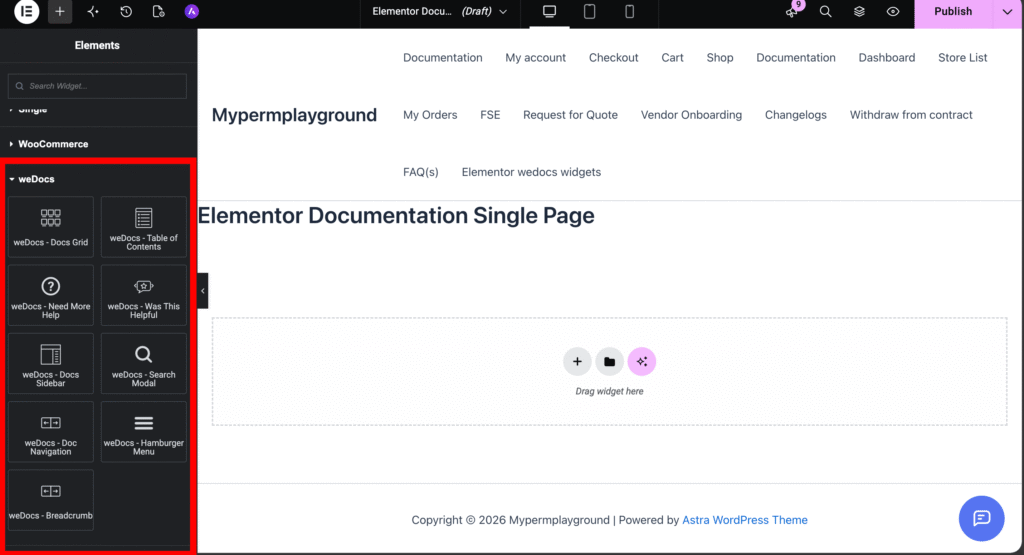
Then weDocs ships nine dedicated Elementor widgets so you design that help center on an Elementor page. The widgets are Docs Grid, Table of Contents, Need Help, Was This Helpful, Docs Sidebar, Search Modal, Doc Navigation, Docs Hamburger Menu, and Docs Breadcrumb. Drag them onto a page and style them like any other Elementor element.
Here is how the tiers split, stated plainly. The content structure, live search, feedback voting, basic analytics, the FAQ builder, BetterDocs migration, and all nine Elementor widgets are free. The AI chatbot, an automatic table of contents, pre-built layouts, and role-based permissions sit in Pro.
One old note still floating around claims weDocs does not work with Elementor templates and that you must fall back on a shortcode. That is out of date. weDocs now ships those nine Elementor widgets, so you place and style docs with native Elementor elements, not a lone shortcode.

Elementor Widgets vs a Dedicated Docs Template
Choose Elementor widgets when you want the knowledge base to match a heavily custom-designed site. Choose the plugin’s own doc template when you want it live fast with less design work. Both reach the same place, so the real question is how much design control you want against how quickly you want to launch.
| Factor | Elementor Widgets | Built-In Doc Template |
|---|---|---|
| Design control | Full, down to each element | Theme defaults, lighter touch |
| Speed to launch | Slower, you build each page | Fast, works out of the box |
| Elementor Pro needed | Only for Theme Builder templates | No |
| Ongoing upkeep | You maintain the design | Plugin handles layout updates |
Teams running real support see this play out. The breakdown of using weDocs for 24/7 eCommerce customer support shows the template route carrying a busy help center without a heavy build, which is often the right call when docs matter more than pixel-level design.
FAQ
Does Elementor have a built-in knowledge base?
No. Elementor is a page builder, so it has no built-in system for storing, organizing, or searching documentation. The nearest native tool is its FAQ accordion widget, which is fine for a handful of questions but is not a knowledge base. You add a documentation plugin for the content engine and use Elementor for the design.
Can Elementor’s FAQ widget replace a knowledge base?
Only for the smallest cases. The FAQ widget is enough when you have a short, fixed list of common questions that fits on one page. Once you pass a dozen or so articles, or you need readers to search and browse categories, the widget runs out of room and you need a real documentation system.
Do I need Elementor Pro to build a documentation page?
Not for a standard page. Elementor Free lets you drop documentation widgets onto a normal page and style them. You only need Elementor Pro if you want to build a custom single-doc template in the Theme Builder, which is a design choice rather than a requirement.
Does weDocs work with Elementor?
Yes. weDocs ships nine dedicated Elementor widgets, so you design docs pages with native Elementor elements. The older claim that weDocs needs a shortcode and does not work with Elementor is out of date.
How much does it cost to add a knowledge base to an Elementor site?
You can start for free. The weDocs free version covers the content structure, live search, feedback voting, basic analytics, and all nine Elementor widgets, so a working knowledge base costs nothing beyond your existing site. Paid tiers add the AI chatbot, pre-built layouts, and role permissions, and Elementor Pro is optional on top. To compare the options first, see the roundup of the best knowledge base plugins for WordPress.
What are the best practices for writing knowledge base articles?
Write one clear question per article and title it the way a customer would search for it. Keep the answer short, lead with the fix, and break steps into a numbered list. Then let your feedback votes and view analytics tell you which articles to rewrite next.
Turn Your Elementor Site Into a Real Knowledge Base
An Elementor knowledge base is really just well-structured documentation wearing your Elementor design. Pick the content engine first, then style it, and the page builder stops being the thing you fight. When you are ready to put both layers in place, weDocs Pro adds the AI assistant and role permissions on top of the free content engine and Elementor widgets. Start with the free version, publish a few articles, and let people answer their own questions.
Subscribe to
weDocs blog
We send weekly newsletters,
no spam for sure!


