

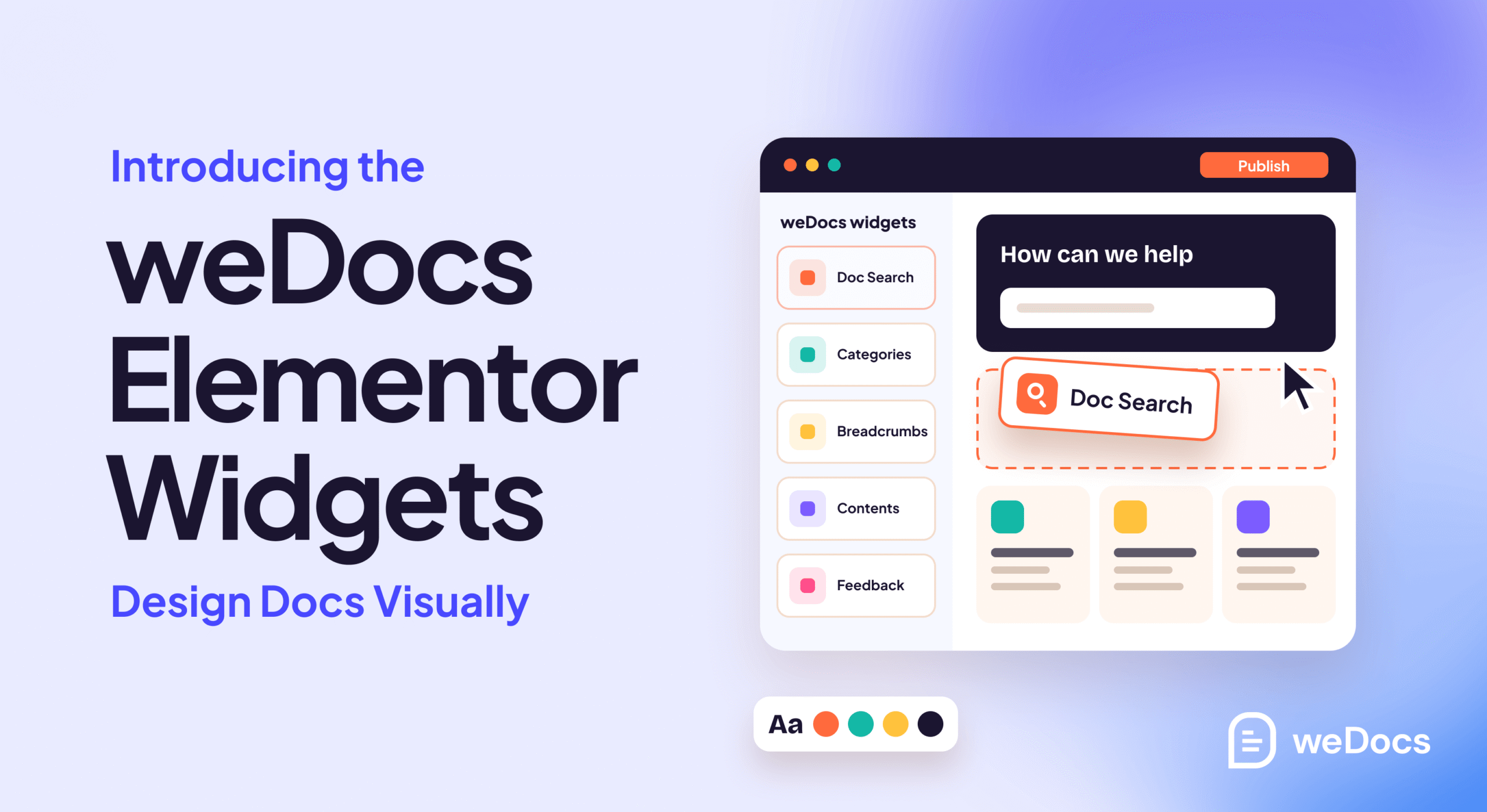
You designed a beautiful site in Elementor, and then your help section shows up looking like it belongs to a different company. The new weDocs Elementor widgets close that gap, so your documentation can finally wear the same design as the rest of your site. Nine widgets drop straight onto an Elementor page, with no code and no compromise. Here is what shipped and why it matters.
TLDR
- weDocs now ships nine widgets that build a full documentation page visually in Elementor.
- All nine weDocs Elementor widgets are free and work with free Elementor, so matching your docs to your brand costs nothing extra.
- Drag them onto any Elementor page from the “weDocs” widget category.
- Your docs stay on your own domain and in your own design, not a vendor’s off-brand subdomain.
- Only a full custom single-doc template needs Elementor Pro and its Theme Builder.
Why Design Your Docs in Elementor
Because your help center should look like the rest of your site, not a generic template bolted onto the side. When a reader jumps from your polished homepage to a help page that looks nothing like it, the trust you built takes a hit, and on-brand docs that match your Elementor design keep readers inside your brand from the first click to the last answer.
There is a cost most teams never price in. Hosted help-center tools park your documentation on their own subdomain, off your brand, behind a monthly fee you pay forever. Worse, your most-read and most-linked content then builds search authority for the vendor’s domain instead of yours. weDocs keeps the docs on your own WordPress site, in your own Elementor design, as part of the property you already control. That is the real win, and the widget count is just how you get there.
It matters because most people reach for self-service first. Harvard Business Review reported in 2017, in Dixon and colleagues’ “Kick-Ass Customer Service,” that 81% of customers try to resolve issues on their own before contacting support.
The 9 weDocs Elementor Widgets
weDocs adds nine widgets to a dedicated “weDocs” category inside Elementor, and together they cover structure, search, navigation, and feedback, which is enough to build a complete docs page visually. Here is the full set, grouped by the job each one does.
- Structure and navigation. Docs Grid, Docs Sidebar, Breadcrumb, Doc Navigation, and Hamburger Menu.
- Find and answer. Search Modal and Table of Contents.
- Feedback and support. Was This Helpful and Need More Help.
The structure and navigation widgets lay out the bones of the help center. Docs Grid shows your documentation as a grid of cards for a docs home page, Docs Sidebar builds the section-and-article tree with a quick search box, Breadcrumb shows the path to the current article, Doc Navigation adds previous and next links in reading order, and Hamburger Menu gives mobile readers a compact version of the same tree.
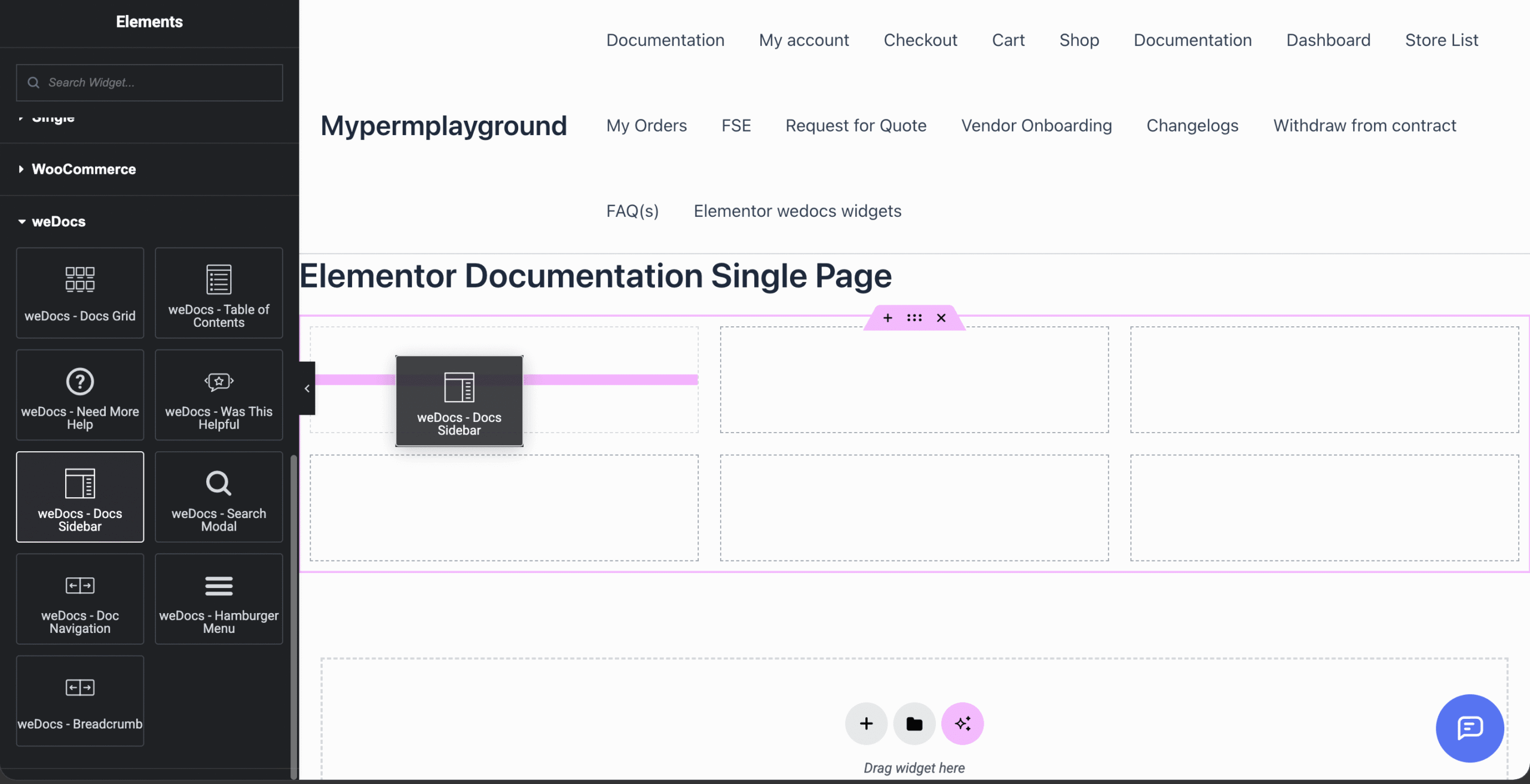
The find and answer widgets help readers reach the right page fast. Search Modal opens a pop-up search box you can place in a header or hero, and Table of Contents lists the current article’s headings so a reader can jump straight to the part they need.
The feedback and support widgets close the loop. Was This Helpful adds yes and no buttons at the end of an article, so you learn which pages work, and Need More Help drops in a box that points readers to support when the docs come up short. Write the articles first, though, and the guide on how to manage documentation in WordPress covers that groundwork.
What the weDocs Elementor Widgets Cost
All nine widgets are free and run on free Elementor. The only paid line is a full custom single-doc template, which is built in the Elementor Pro Theme Builder, so a standard docs page you design with the widgets costs nothing beyond the tools you already have.
Here is how the tiers split. The free weDocs plugin gives you all nine widgets plus the docs structure, live search, feedback voting, basic analytics, the FAQ builder, BetterDocs migration, and 18 Gutenberg blocks for block-editor users. weDocs Pro adds the AI chatbot, an automatic table of contents, pre-built layouts, and role-based permissions. One detail worth keeping straight is that the Elementor “Table of Contents” widget is free, while the automatic front-end table of contents is a Pro feature, so the two are not the same thing.
That free-on-free path is not a given elsewhere. Some rival docs plugins put comparable Elementor design behind Elementor Pro or a second add-on plugin, where the weDocs widgets run on the free builder. For the full tier breakdown, the overview of weDocs Pro lays out what each plan includes and where the pricing lands.
How to Add the Widgets to Your Elementor Page
Install weDocs and Elementor, open any page in the Elementor editor, and drag the widgets from the “weDocs” category onto the canvas. The widgets are drag-and-drop, so they behave like any other Elementor element once they are in place.
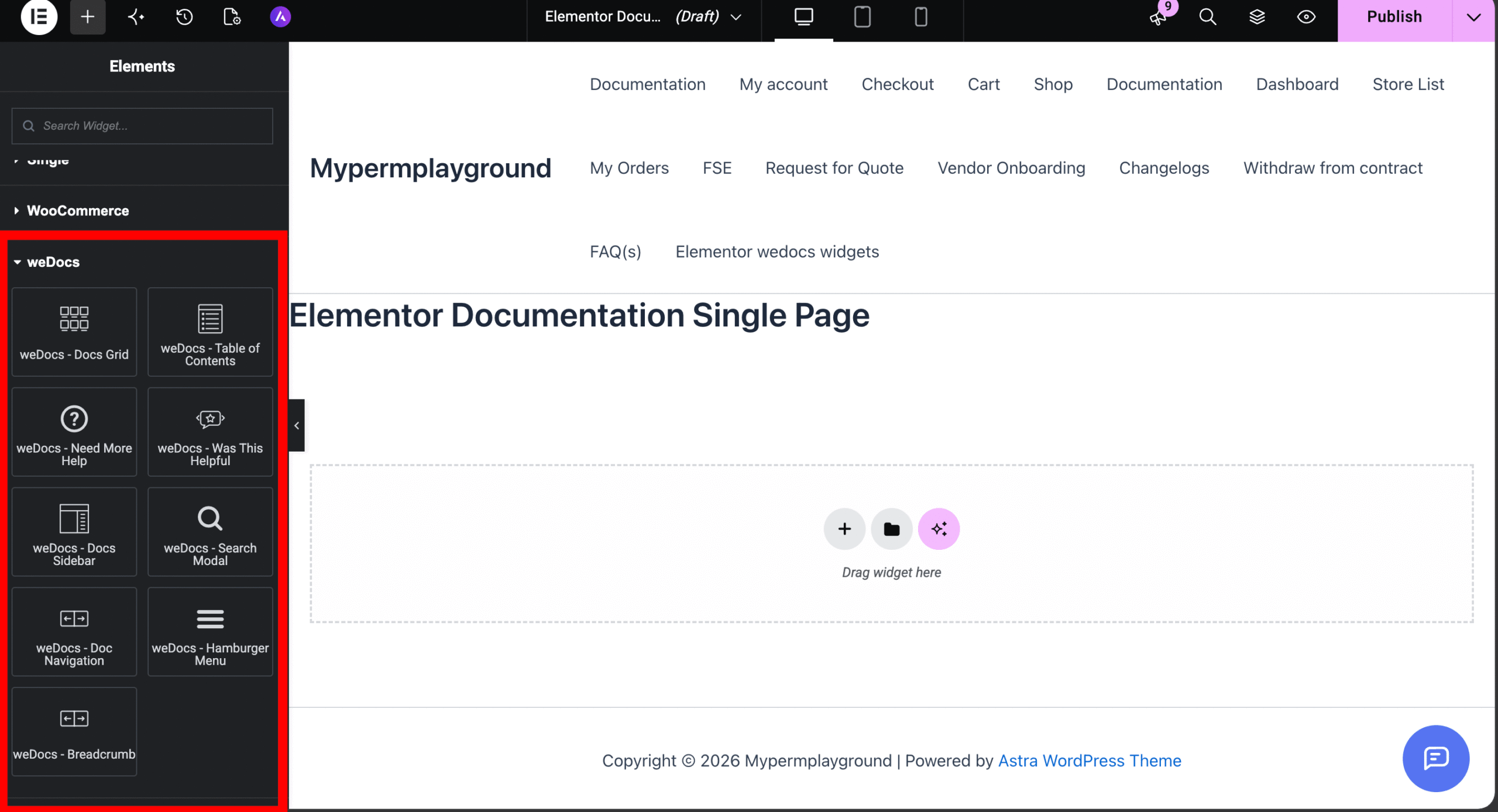
The full steps live in the documentation, so this is a hand-off rather than a rewrite. You will want weDocs 2.6.0 or newer and free Elementor for the widgets, plus Elementor Pro only if you are building the single-doc template in the Theme Builder. The weDocs Elementor widgets documentation walks through placing and configuring each one.
FAQs
Does weDocs work with Elementor?
Yes. weDocs ships nine dedicated Elementor widgets, so you design docs pages with native Elementor elements. An older note claiming weDocs needs a shortcode and does not support Elementor is out of date.
Do I need Elementor Pro to use the weDocs Elementor widgets?
No. All nine widgets work on free Elementor. You only need Elementor Pro if you want to build a custom single-doc template in the Theme Builder, which is a design choice rather than a requirement.
Can I design my whole knowledge base in Elementor with weDocs?
Yes. The nine widgets cover the grid, sidebar, search, table of contents, navigation, feedback, and a help prompt, which is everything a standard docs page needs. For anything beyond the widgets, weDocs still supplies the content engine running underneath.
Does weDocs still work if I don’t use Elementor?
Yes. weDocs also ships 18 Gutenberg blocks, shortcodes, and a default template, so you can build a full knowledge base without Elementor at all. The Elementor widgets are an option, not a requirement. You can see where it fits among other tools in this roundup of the best knowledge base plugins for WordPress.
Give Your Docs Your Own Design
Your documentation can finally look like it belongs to your site instead of a stranger’s. Open Elementor, drop the weDocs Elementor widgets onto a page, and style the help center the same way you styled everything else. If you are still weighing the editor itself, the comparison of Elementor vs Gutenberg for a documentation site is a good next read, and the primer on what an Elementor knowledge base actually is covers the bigger picture.
Subscribe to
weDocs blog
We send weekly newsletters,
no spam for sure!


