
weDocs now works inside Elementor. You get a set of weDocs widgets for building documentation pages, plus a ready-made single doc template you can open and restyle in the Elementor Theme Builder.
This guide covers both parts.
- weDocs widgets. Drag docs grids, sidebars, search, a table of contents and feedback boxes onto any Elementor page.
- Single doc template. Design how every individual doc looks, then tell weDocs to use it.
Before you start
The widgets work with free Elementor. The single doc template needs Elementor Pro, because it is built in the Theme Builder.
| What you want to do | weDocs | Elementor |
|---|---|---|
| Use weDocs widgets on a page | weDocs (free) 2.6.0 or later | Elementor (free) |
| Design the single doc template | weDocs (free) 2.6.0 or later | Elementor Pro (Theme Builder) |
Make sure all plugins are installed, activated and updated before you begin.
Add weDocs widgets to a page
Any Elementor page can hold weDocs widgets. Here is how to add them.
- Go to Pages and create a new page, or open an existing one.
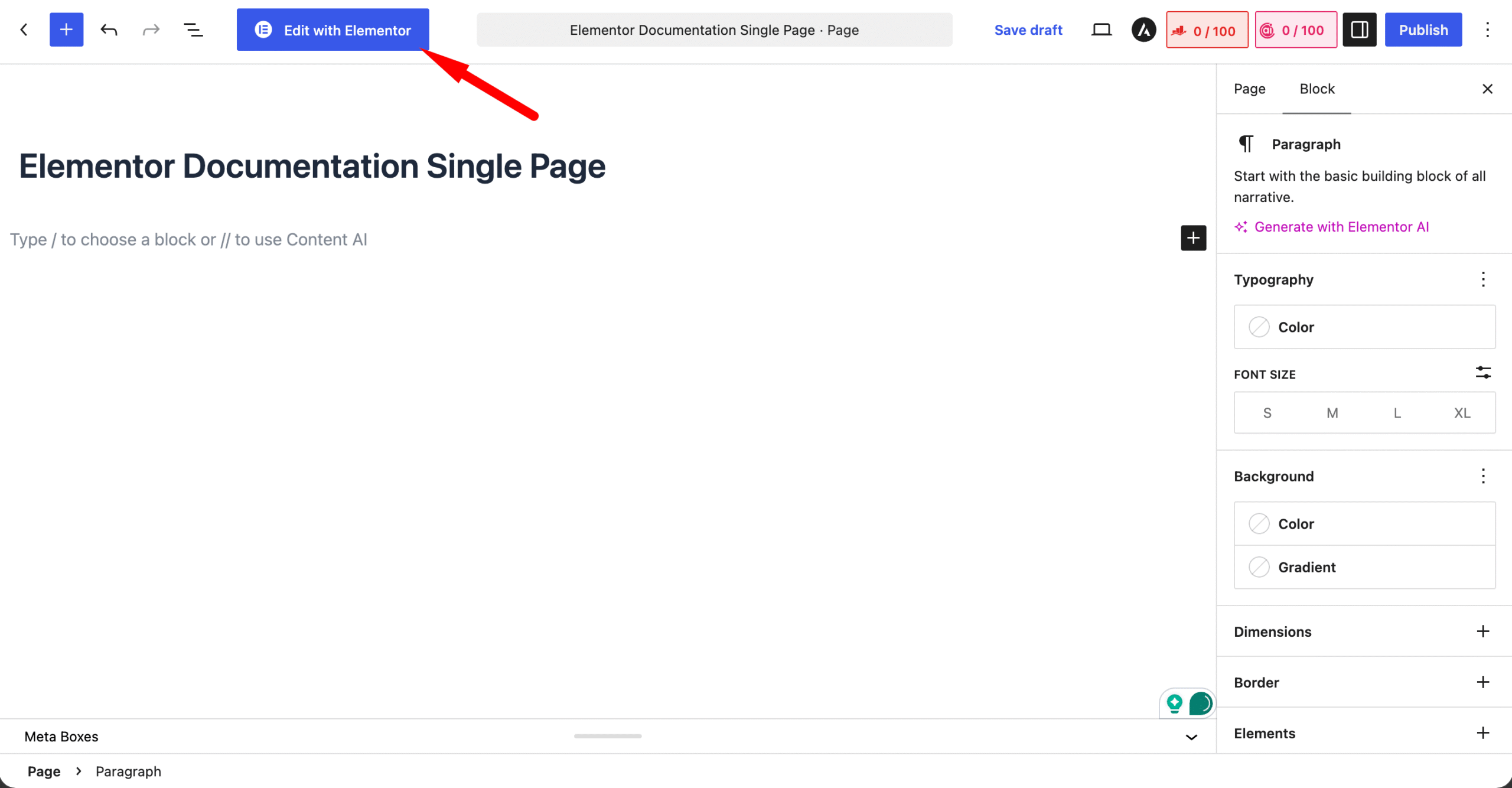
- Click Edit with Elementor at the top of the editor.
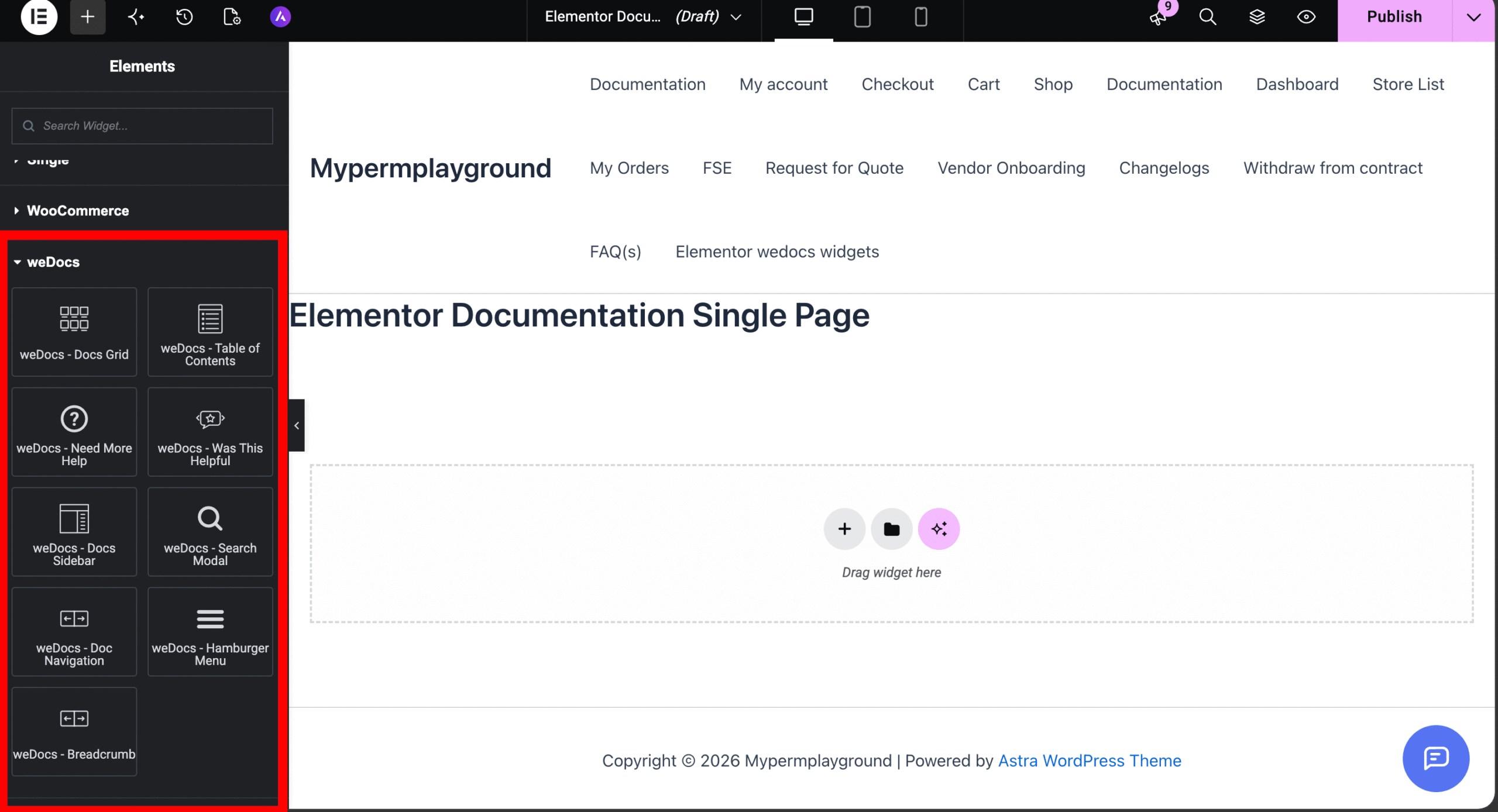
- In the Elementor Elements panel, scroll down to the weDocs category. You can also type “weDocs” in Search Widget… to find them faster.
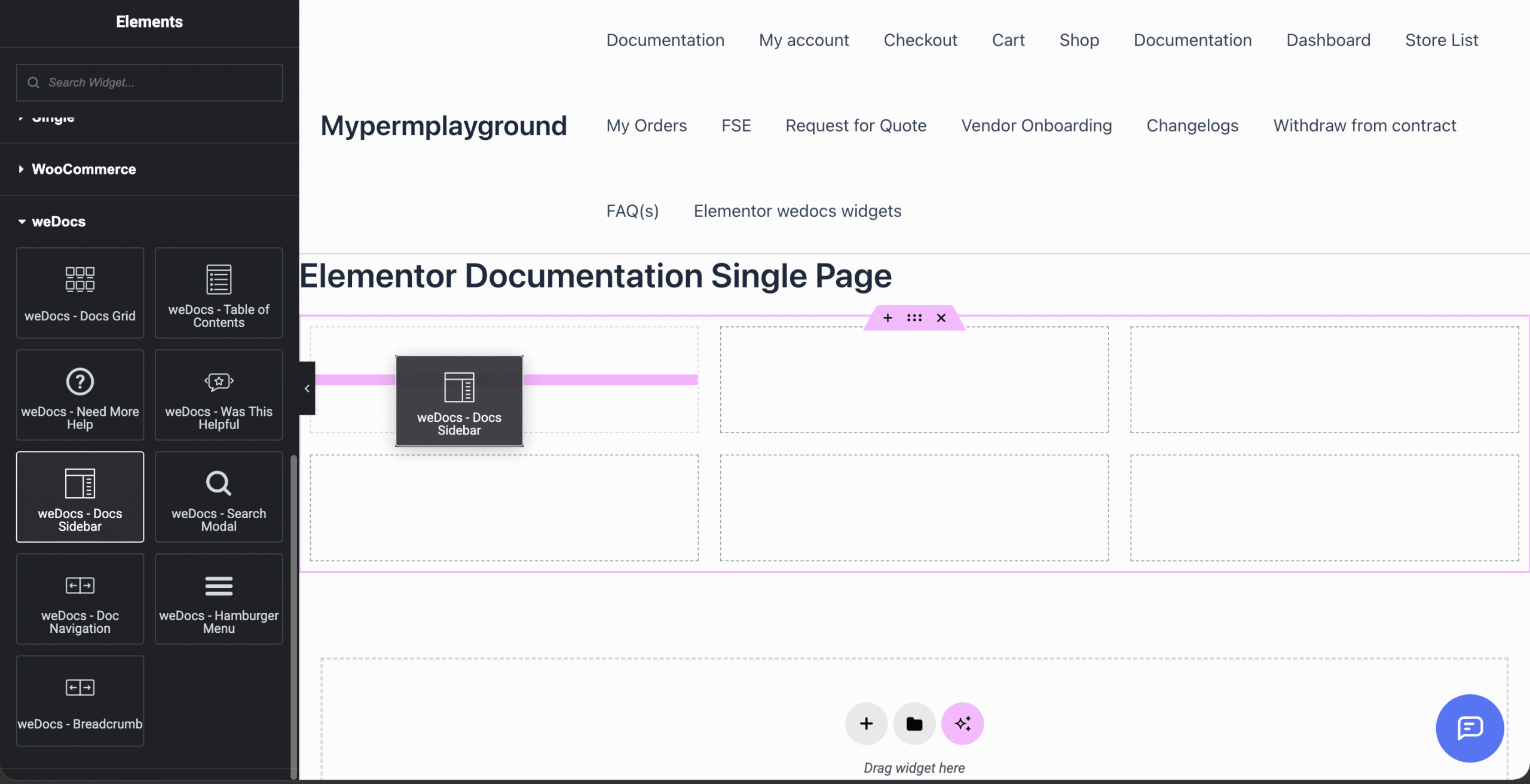
- Drag a widget into a section or column on your page. For example, drag weDocs – Docs Sidebar into the left column of a three-column layout.
- Click the widget to open its settings in the left panel. Adjust its content and style there.
- Click Publish or Update to save the page.
A common docs layout uses three columns. Put Docs Sidebar on the left, Breadcrumb, the doc content and Doc Navigation in the middle, and Table of Contents on the right.
weDocs widgets
The weDocs category in Elementor holds nine widgets. Use them on regular pages or inside the single doc template.
| Widget | What it shows | Where to use it |
|---|---|---|
| weDocs – Docs Grid | Your docs as a grid of cards | Docs home or landing page |
| weDocs – Docs Sidebar | The doc tree with sections and articles, plus a quick search box | Left column of a doc page |
| weDocs – Breadcrumb | The navigation path to the current doc | Above the doc title |
| weDocs – Doc Navigation | Previous and next doc links in reading order | Below the doc content |
| weDocs – Table of Contents | An “On This Page” list of the current doc’s headings | Right column of a doc page |
| weDocs – Search Modal | A search box that opens a search popup | Header, hero or sidebar |
| weDocs – Hamburger Menu | A compact menu for the doc tree | Mobile and tablet layouts |
| weDocs – Was This Helpful | Yes and no feedback buttons for the reader | End of the doc content |
| weDocs – Need More Help | A box pointing readers to support | End of the doc page |
Previous and next links follow your full documentation tree, so readers move through docs in the order you set.
Design the single doc template (Elementor Pro)
weDocs adds a ready-made template called weDocs – Single Doc Page to the Elementor Theme Builder. You edit it like any other Theme Builder template. This part needs Elementor Pro.
Open the template
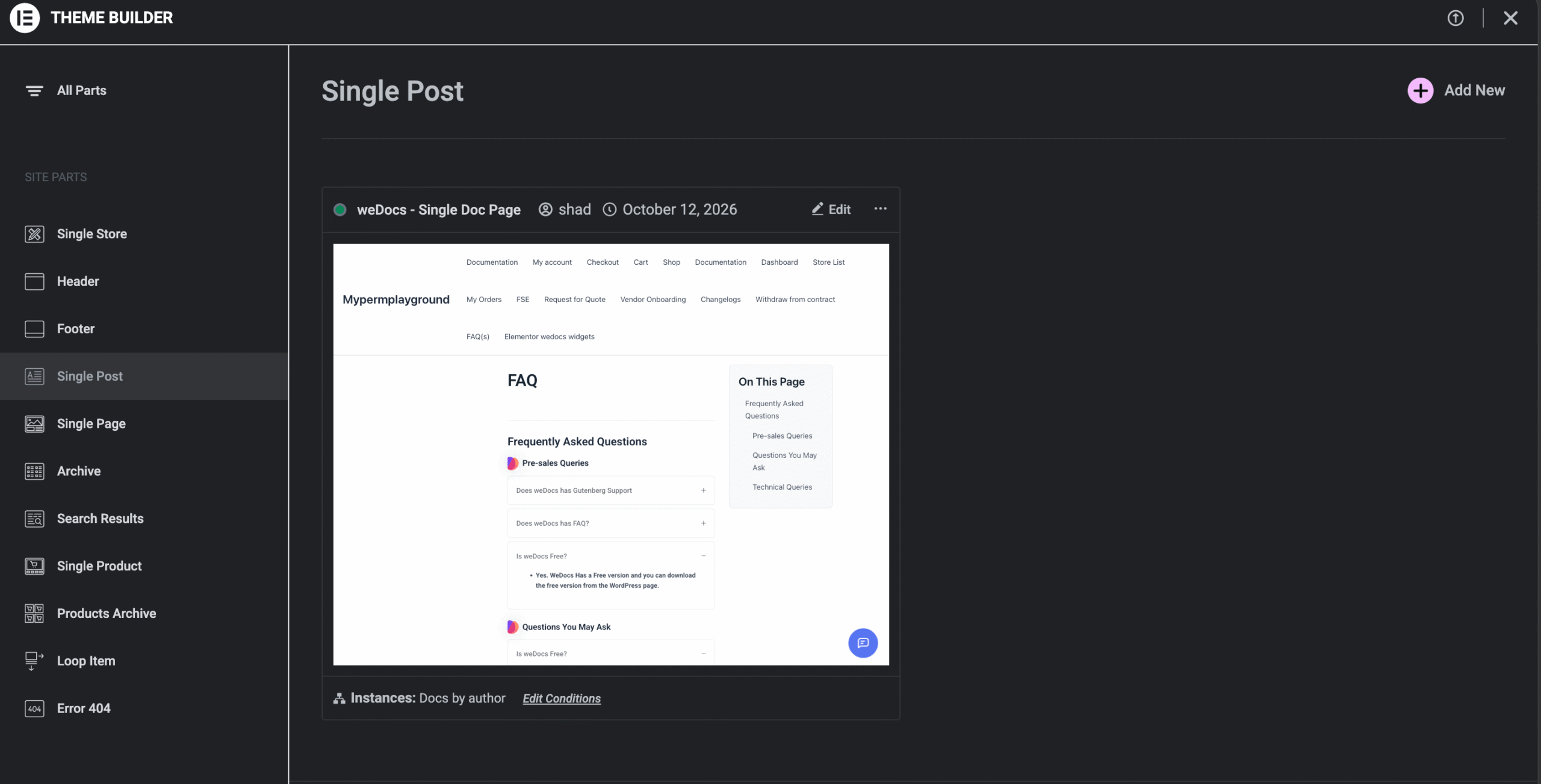
- Go to Templates > Theme Builder in your WordPress dashboard.
- Click Single Post under Site Parts.
- Find weDocs – Single Doc Page and click Edit.
Customize the layout
The template opens in Elementor with a sample doc in the preview. It comes with a docs sidebar, breadcrumb, doc content and an “On This Page” table of contents.
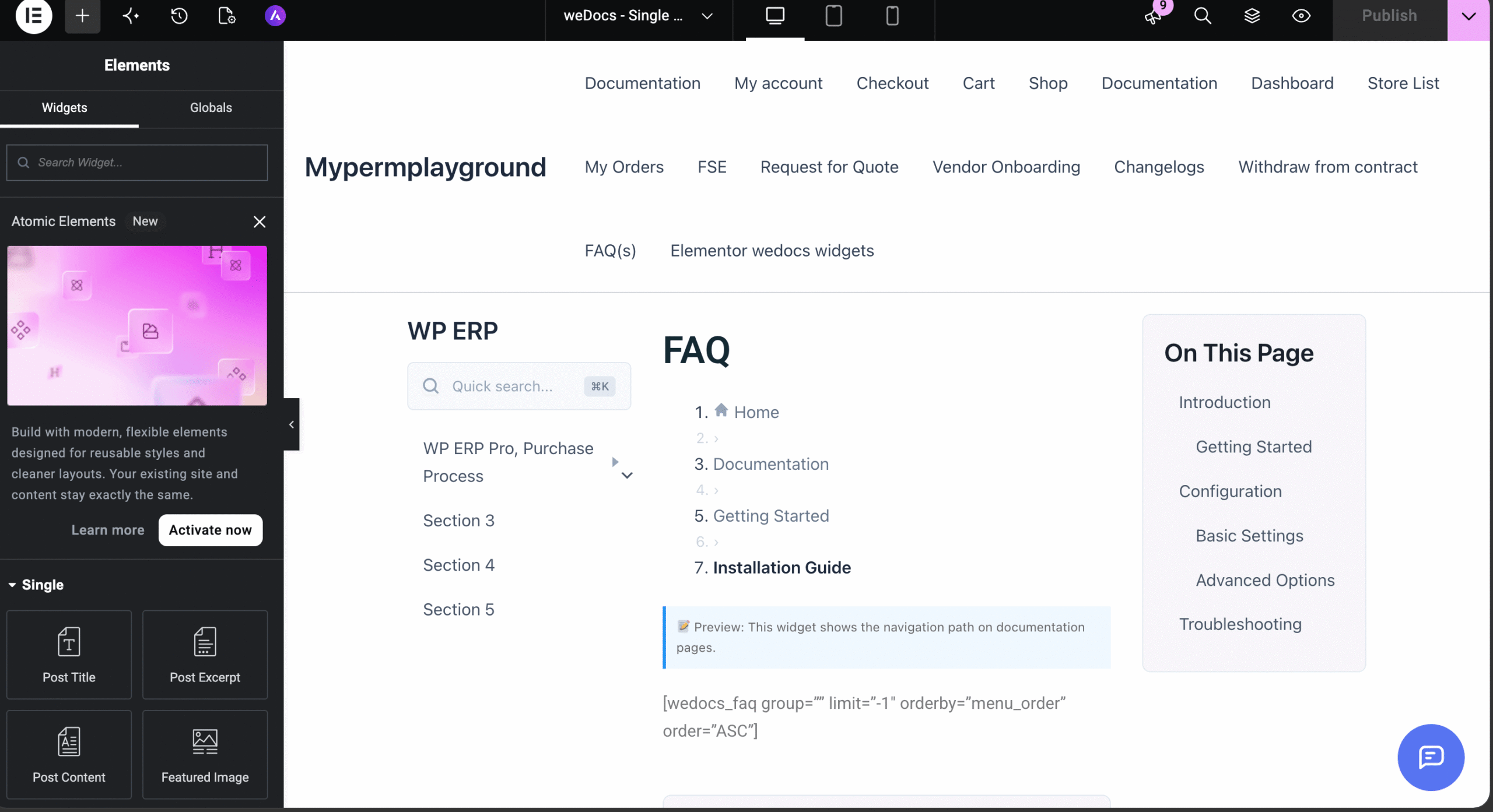
- Move, remove or restyle any widget in the layout.
- Add more weDocs widgets from the weDocs category, such as Was This Helpful or Need More Help.
- Use Elementor’s own Single widgets, such as Post Title, Post Content and Featured Image, for the doc itself.
- Add FAQs with the weDocs FAQ shortcode inside a Shortcode widget.
[wedocs_faq group="" limit="-1" orderby="menu_order" order="ASC"]Click Publish or Update when you are done.
Set display conditions
Display conditions tell Elementor which docs use this template. In the Theme Builder, click Edit Conditions under the template card. In the screenshot above, the template shows Instances: Docs by author.
- Click Edit Conditions.
- Choose Include, then pick Docs to apply the template to every doc.
- Add an Exclude rule if some docs should keep a different layout.
- Click Save & Close.
Elementor explains every condition option in its guide on setting conditions for templates.
Tell weDocs to use the Elementor template
The last step is one setting in weDocs. It decides which template renders your single docs.
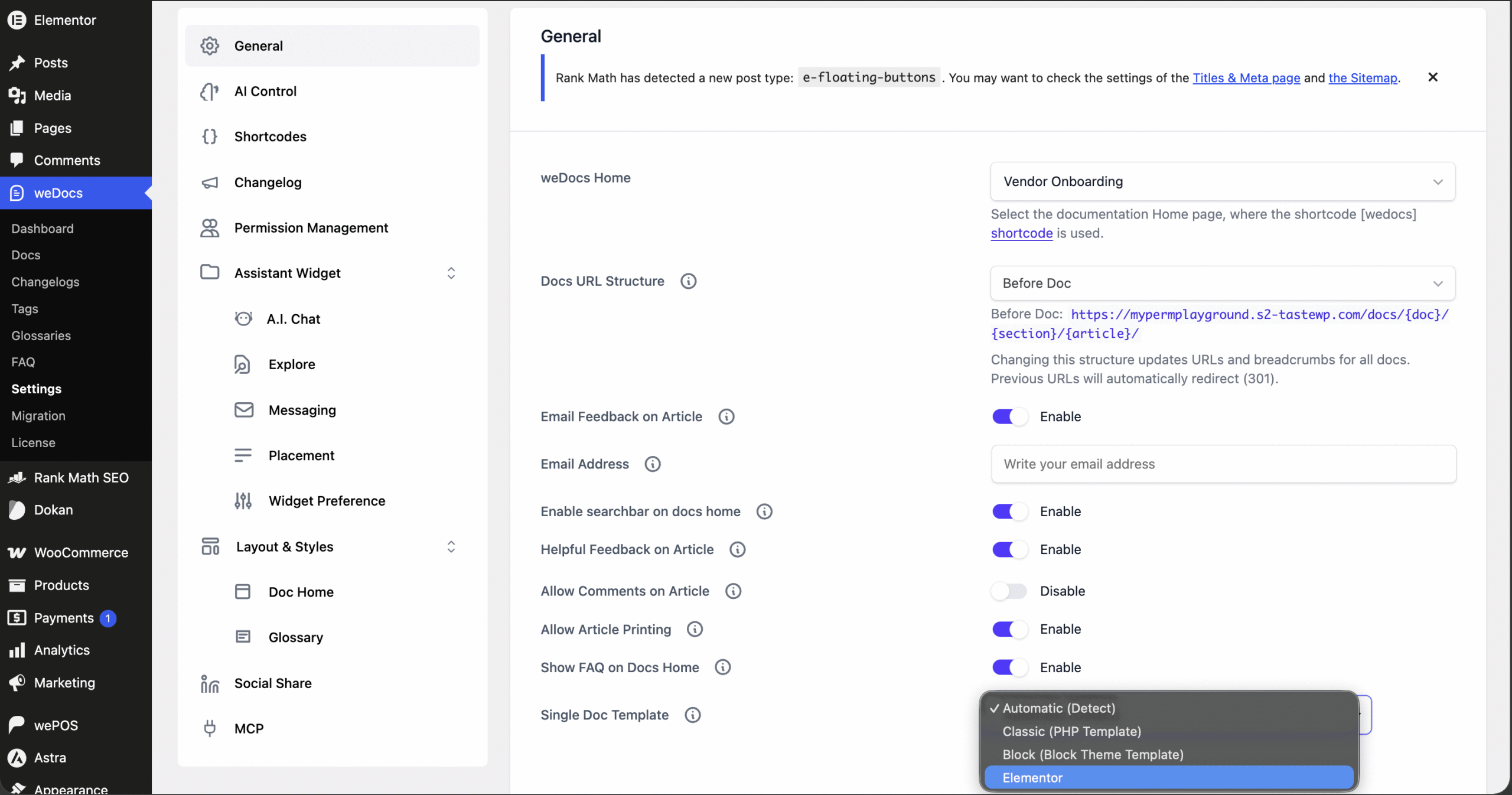
- Go to weDocs > Settings > General.
- Scroll to Single Doc Template.
- Select Elementor from the dropdown.
- Save your settings.
| Option | What it uses |
|---|---|
| Automatic (Detect) | weDocs picks the template that fits your theme. This is the default. |
| Classic (PHP Template) | The classic weDocs PHP template |
| Block (Block Theme Template) | The block theme template for full site editing themes |
| Elementor | Your Elementor Theme Builder template |
Open any doc on your site to check the new layout.