
A reader gets four steps into your setup guide, hits a word they do not know, and stops. Maybe an acronym, maybe an ordinary word that means something specific inside your product. Instead of asking you, they open a new tab and finish their research on somebody else’s site.
You never find out it happened, which is why this gap sits in documentation for years without anyone fixing it. You have been asking us for a knowledge base glossary for a long time, and it is live in weDocs Pro today.
TLDR
- The Glossary lets you define a term once, and weDocs shows that definition everywhere the word appears in your documentation.
- Readers get the answer in a tooltip when they hover, so they stay on the page instead of searching somewhere else.
- You do not touch a single article. weDocs finds the terms in your published content on its own.
- Each term carries a name, a short definition, and an optional link for anyone who wants the full story.
- The Glossary is a weDocs Pro feature.
Why a Knowledge Base Glossary Beats Explaining Terms Twice
A knowledge base glossary works because the explanation lives in one place instead of thirty. Most teams handle unfamiliar words one of two ways, and both cost something. Either you explain the term again in every article that uses it, which makes the writing longer and drags the reader through something they already understood three pages ago. Or you skip it and hope the reader knows, which leaves part of your audience stuck halfway through a setup guide.
Neither problem is really about writing. It is about where the definition lives. When it lives inside the article, you pay for it again every time you write a new one. When it lives in a glossary, you write it once and it shows up wherever it is needed. Overusing technical terms is one of the most common documentation mistakes teams make, and a glossary removes the reason it happens.
There is a second benefit that shows up later. Your terms stay consistent. When one writer says workspace and another says project for the same thing, readers feel the gap even if they cannot name it. A glossary gives your team one agreed definition to point at.
Your Definitions Stay on Your Own Domain
Every definition you write stays inside your WordPress install, on your URL, under your control. That sounds obvious until you look at how the alternatives work.
Document360 keeps glossary terms in their knowledge base portal, and the public glossary they run sits on their own domain. Their customers write the definitions, and the page that collects them belongs to the platform. HeroThemes solves it with a separate plugin you install and maintain alongside your docs plugin.
The ownership question matters more than it used to. A term and its definition is the most quotable unit of content a documentation site owns. It is short, self-contained, and it answers a question directly, which is exactly the shape of content that search engines and AI assistants pull into their answers. When someone asks what a term means and gets an answer, that answer points at a source. If your definitions live on a platform, the platform benefits. If they live on your site, you do.
What the weDocs Glossary Gives You
Four things, and the fourth is the one that saves the most time.
- One definition applied everywhere. Write it once in your dashboard and it covers every article that uses the word.
- A tooltip readers do not have to click. The term shows as a link inside your text, and hovering opens the definition without moving the reader off the page.
- An optional link out. Point a term at a full article for anyone who wants more than a sentence, with a label you choose.
- No article edits. weDocs scans your published documentation and finds the term itself.
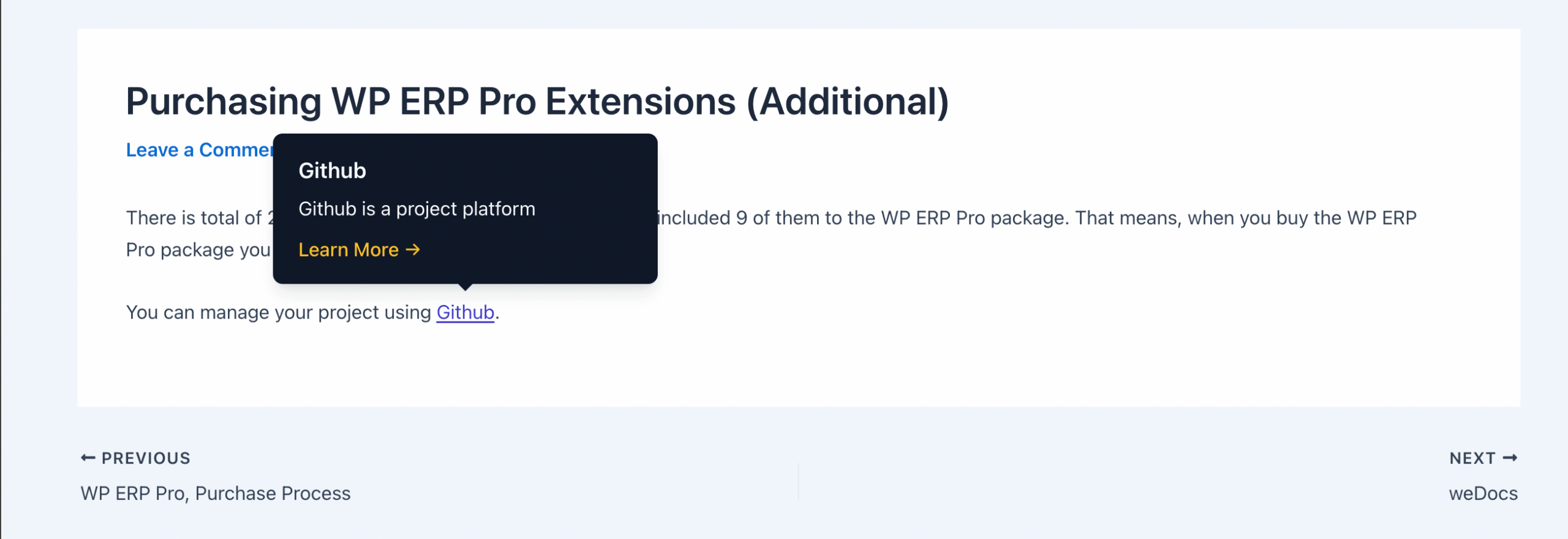
That last point is worth sitting with. There is no block to insert, no shortcode to remember, and no pass through old articles to tag things. You add a term today and it starts working in documentation you wrote two years ago. Adding a glossary of key terms is standard advice in every guide to documentation best practices, and the reason teams skip it is usually the retrofit work. That part is gone.
The Glossary comes with weDocs Pro. You can see what else sits in the Pro tier on the pricing page.
Turn On the Glossary in a Few Minutes
Setup runs in three short steps. Switch Enable Glossary on under weDocs > Settings > General. Open weDocs > Glossaries and add your first term with its definition. Then open any article that uses the word and hover over it.
That is the whole flow. For the full walkthrough with screenshots, including how to style the tooltip and manage terms once you have a few, read the Glossary documentation.
Start With the Words Your Support Team Repeats Most
Five or six terms is a better first day than fifty. Ask your support team which words they explain over and over in tickets, and add those first. Those are the terms already costing you time, so they pay back fastest.
Keep each definition short. A tooltip that fills half the screen makes people close it, and at that point you have interrupted the reader instead of helping them. One or two sentences works. Send anyone who wants depth to a full article through the link field.

Then watch which terms get used. The Glossaries page counts how many articles each term appears in, which tells you something useful about your documentation as well as your glossary. A term with a high count is doing real work. A term sitting at zero means you are defining a word your docs do not actually use, and that is worth knowing when you next audit your knowledge base.
FAQ
1. What happens to my articles if I delete a term?
Your article text stays exactly as it was. Only the tooltip stops appearing. weDocs does not write anything into your content, so removing a term leaves your documentation untouched.
2. Can I switch off a term without deleting it?
Yes. Every term has its own enable toggle. Switch it off and the definition stays saved in your dashboard but stops showing to readers. That helps while you rewrite a definition you are not happy with.
3. Can I match the tooltip to my site design?
Yes, under weDocs > Settings > Layout & Styles > Glossary. You can set the font for both the term and the tooltip, plus colors for the term, its hover state, the tooltip text, border, background, and the link inside it. Each font setting has a reset button if you want the default back.
4. Can I change the order of my terms?
Yes. Each row has a drag handle on the left, so you can move terms up and down the list in your dashboard.
Give It Your Five Hardest Words
A knowledge base glossary is a small addition that keeps paying, because every article you write from now on inherits the definitions you have already written. Update weDocs Pro, switch the Glossary on, and add the five words your readers ask about most.
Subscribe to
weDocs blog
We send weekly newsletters,
no spam for sure!