

Most WordPress site owners treat Product documentation like a support resource, something users go looking for when they’re stuck. And that’s true. But honestly, it’s not the whole story.
When you really think about it, good documentation isn’t just there to fix problems. It actually helps people understand what your product can do and how to use it better. And it can also work as useful social content. A good doc answers a real user question, explains a feature, and shows that your product is actively supported.
When you share documentation consistently on social media, you stop posting randomly and start sharing with purpose. You’re putting the answer in front of people before the question even forms.
In WordPress, the easiest way to make this happen is by using two plugins, which are weDocs and Bit Social. WeDocs helps you create and organise your documentation inside WordPress, while Bit Social simplifies sharing those docs on your multiple social media platforms with the correct format.
What you need for this setup–
- A published document from weDocs
- A WordPress site
- WeDocs installed and activated
- Bit Social is installed and activated
- At least one connected social media account
Well, so first look at the overview of these 2 plugins and how they work.
What is weDocs?
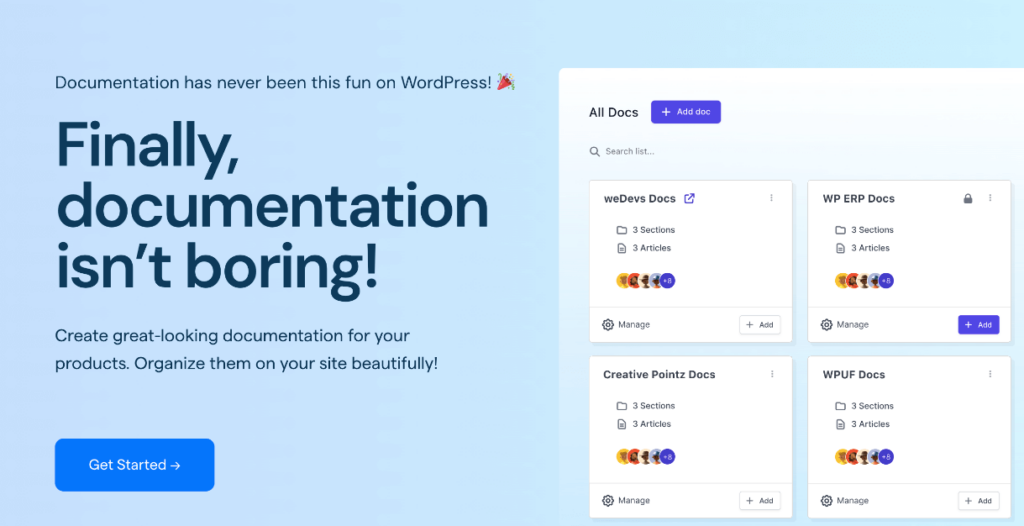
weDocs is a WordPress plugin that lets you create, organize, and publish product documentation directly on your WordPress site. It works like a knowledge base builder. You can create docs for your plugins, SaaS tools, your services, or any product you’re selling or supporting.
When you install weDocs, it adds a documentation section to your WordPress dashboard. From there, you create docs the same way you’d write any WordPress post using a familiar editor. You can organise those docs into sections and subsections, publish them, and they immediately become live.
Key features of weDocs:
- Easy Organization Process: Any user can group your documentation into sections and subsections, so users can actually find what they’re looking for.
- Built right into WordPress: You don’t need external tools or platforms. Your docs live on your own site.
- Great for SEO: Good documentation can support SEO when it answers searchable questions and is properly indexed.
- User feedback system: Readers can upvote or flag docs, so you know what’s working and what needs improvement.
- Role-based access: You can control who can write, edit, or view documentation on your site.
What is Bit Social
Bit Social is a WordPress social media automation plugin that automatically shares your WordPress content to your connected social media accounts.
What makes Bit Social particularly useful for this workflow is its support for Custom Post Types. You can share Posts, Pages, or Docs to your connected social media accounts directly from WordPress.
Now, let’s look at what Bit Social Offers:
- Connect Multiple Social Platforms: You can connect supported social media platforms, like Facebook pages and groups, LinkedIn profiles and company pages, Twitter/X, Instagram, and Pinterest in one place.
- Auto-Post on Publish: Whenever you publish a new doc or post, Bit Social will automatically share it to all your connected social media accounts.
- Schedule Posts for the Right Time: You can schedule your posts for the best engagement time for your social media with Bit Social.
- Platform-Specific Post Templates: You can create different templates for different platforms so your posts feel natural on every platform.
- Supports Custom Post Types: Most of the social media plugins work with publishing blog posts. But Bit Social offers Custom Post Types, including your weDocs documentation pages.
Auto-Post Product Documentation To Social Media (Step-by-Step Guide)
Now, let’s look at the process of how you can autopost your product documentation to social media.
Step 01: Set up weDocs and create your first Documentation
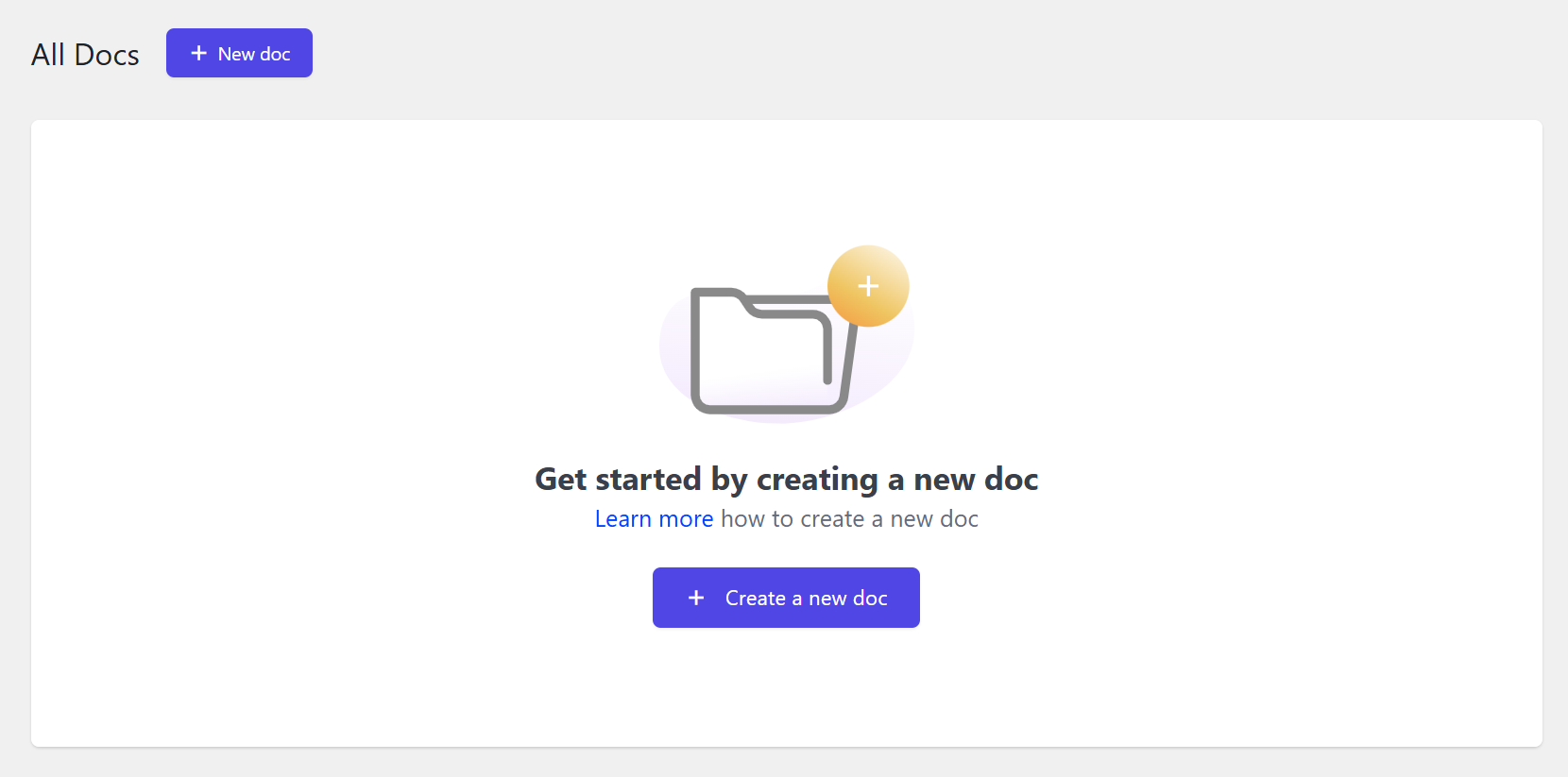
Now, let’s set up weDocs. First, you have to create a new doc from weDocs. Go to DOCS, then click on “Create a New Doc.”
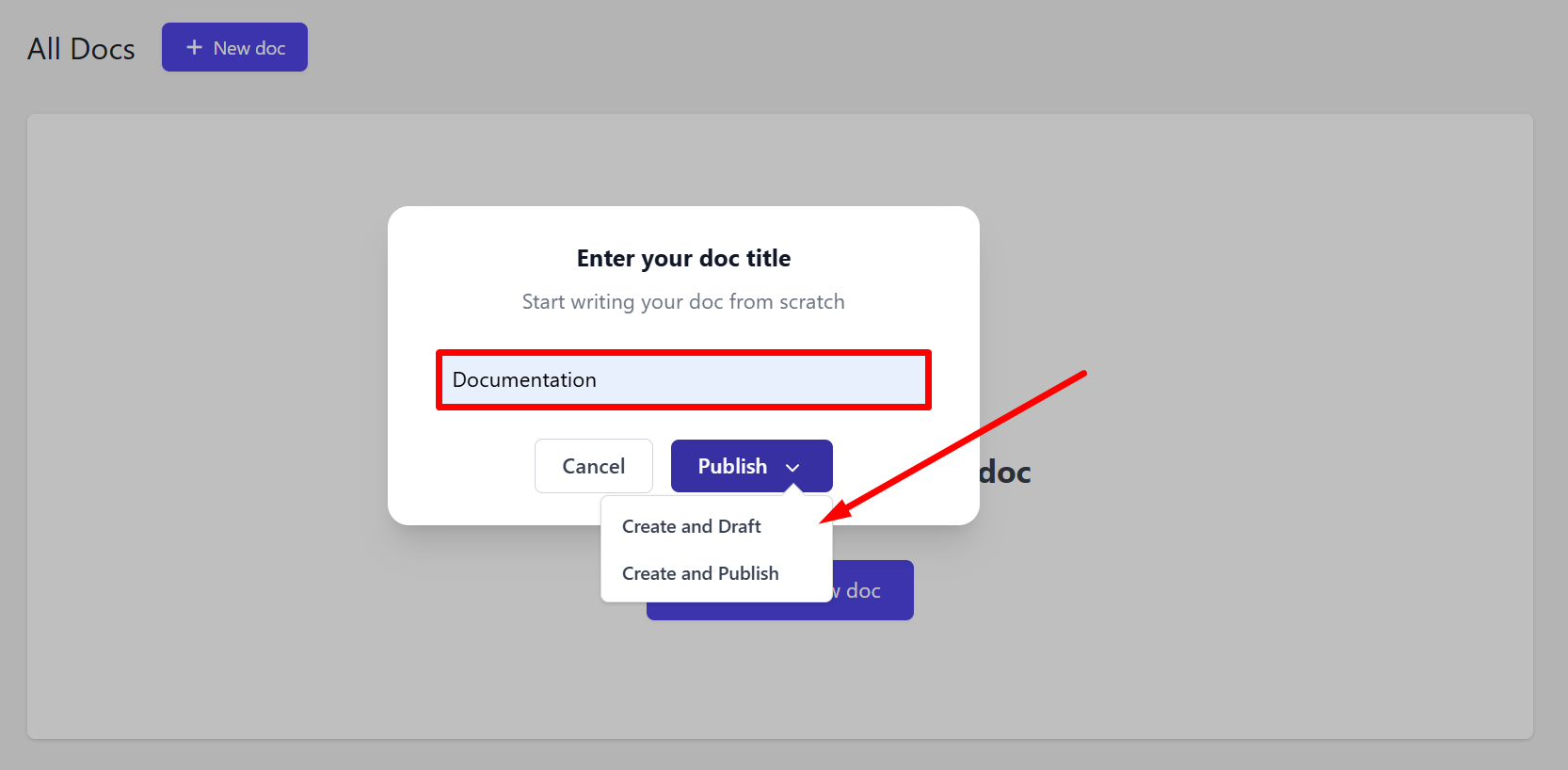
Then, enter a name for your doc. I have titled it “Documentation,” and you will see there are 2 options available. You can save it as a draft or publish it instantly. I have clicked on “Create and Publish”.
Your doc is now live on your site. You can add any article or section under this doc. Let me create a new section to show you how it works.
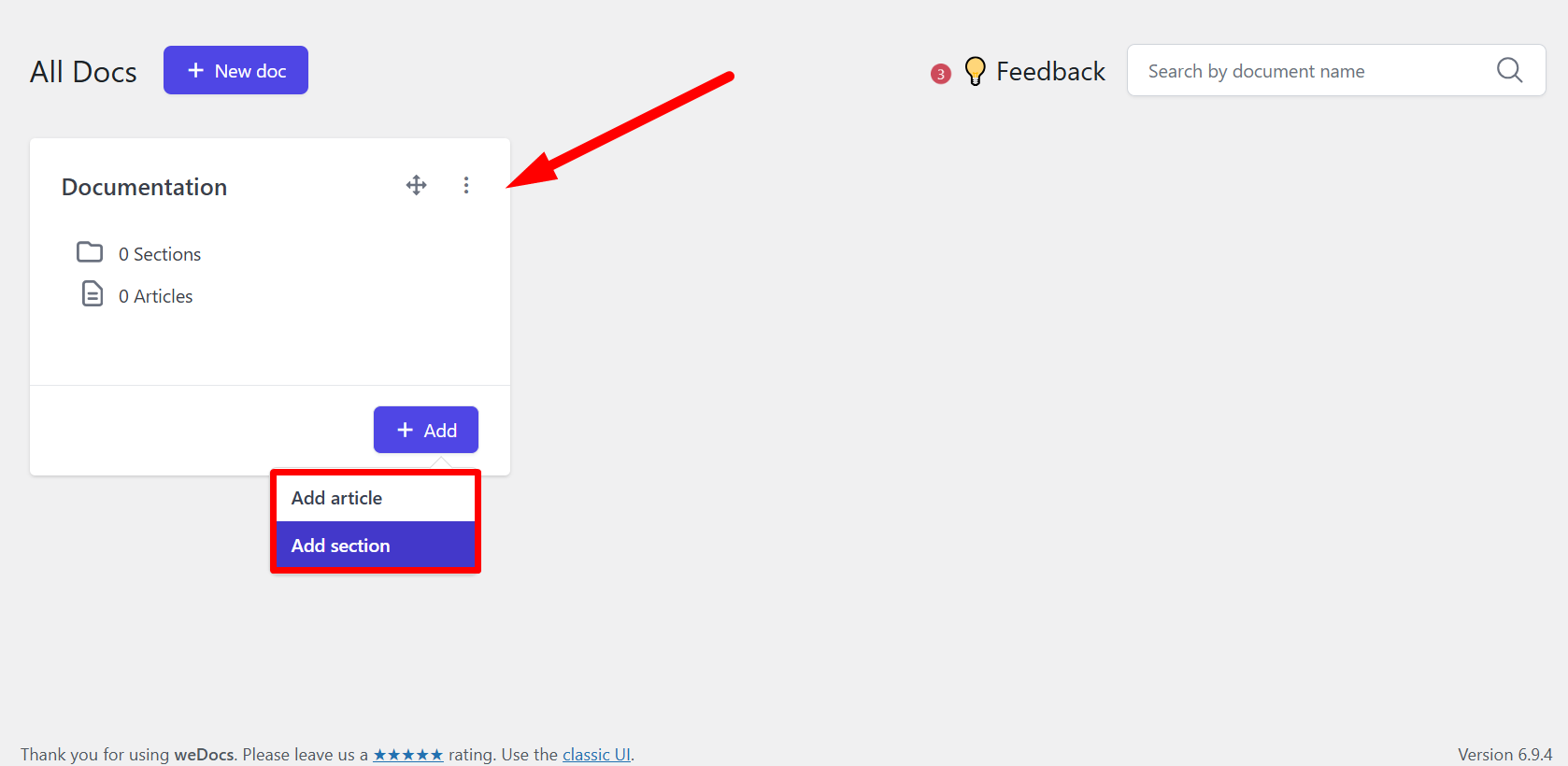
Click Add Section, then give it a name. Just like before, you can either save it as a draft or publish it instantly. I’ve named mine “Accounts” for this example.
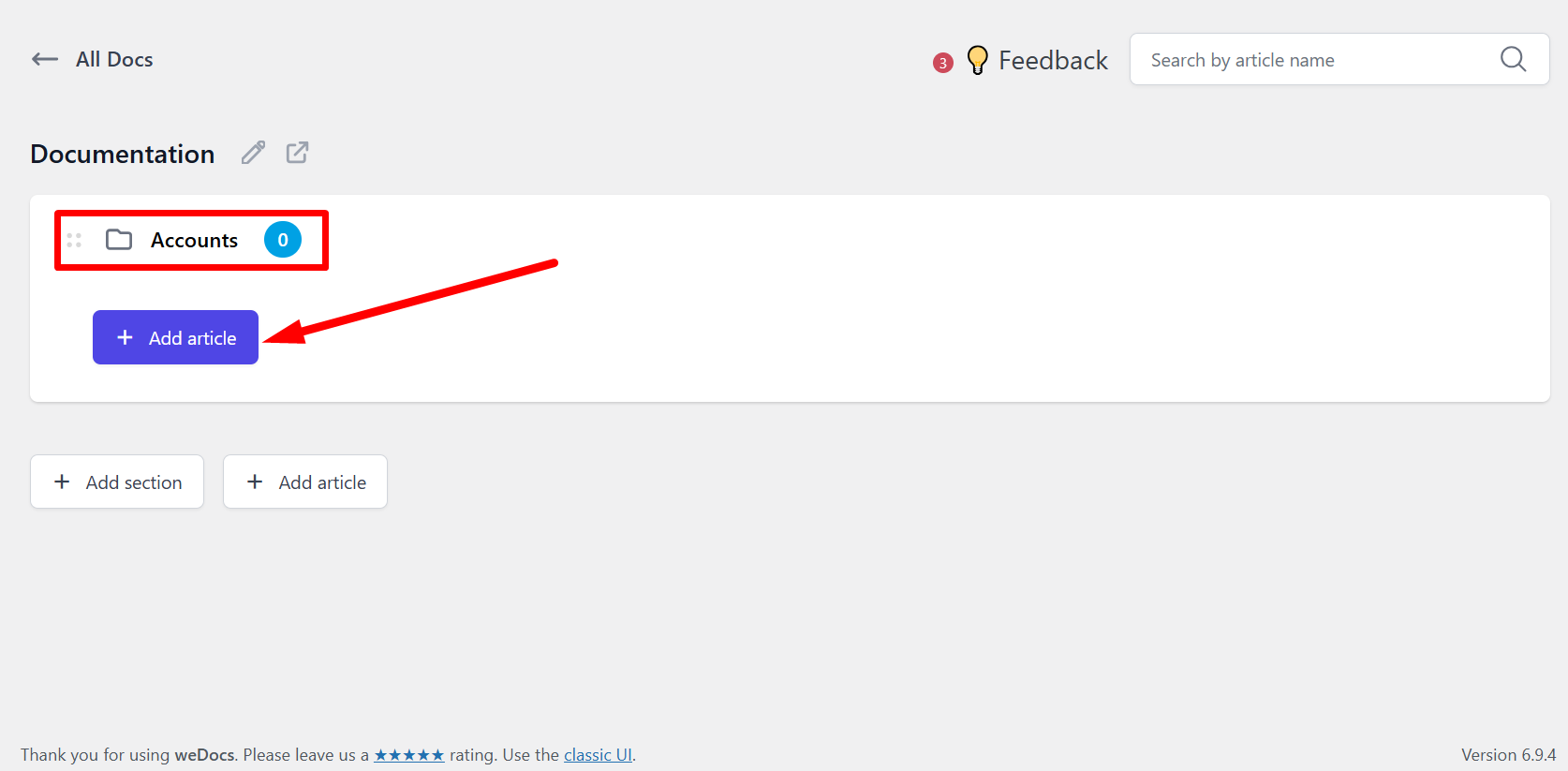
We will add an article under the Accounts section, and later, we will see how Bit Social can auto-post it to social media.
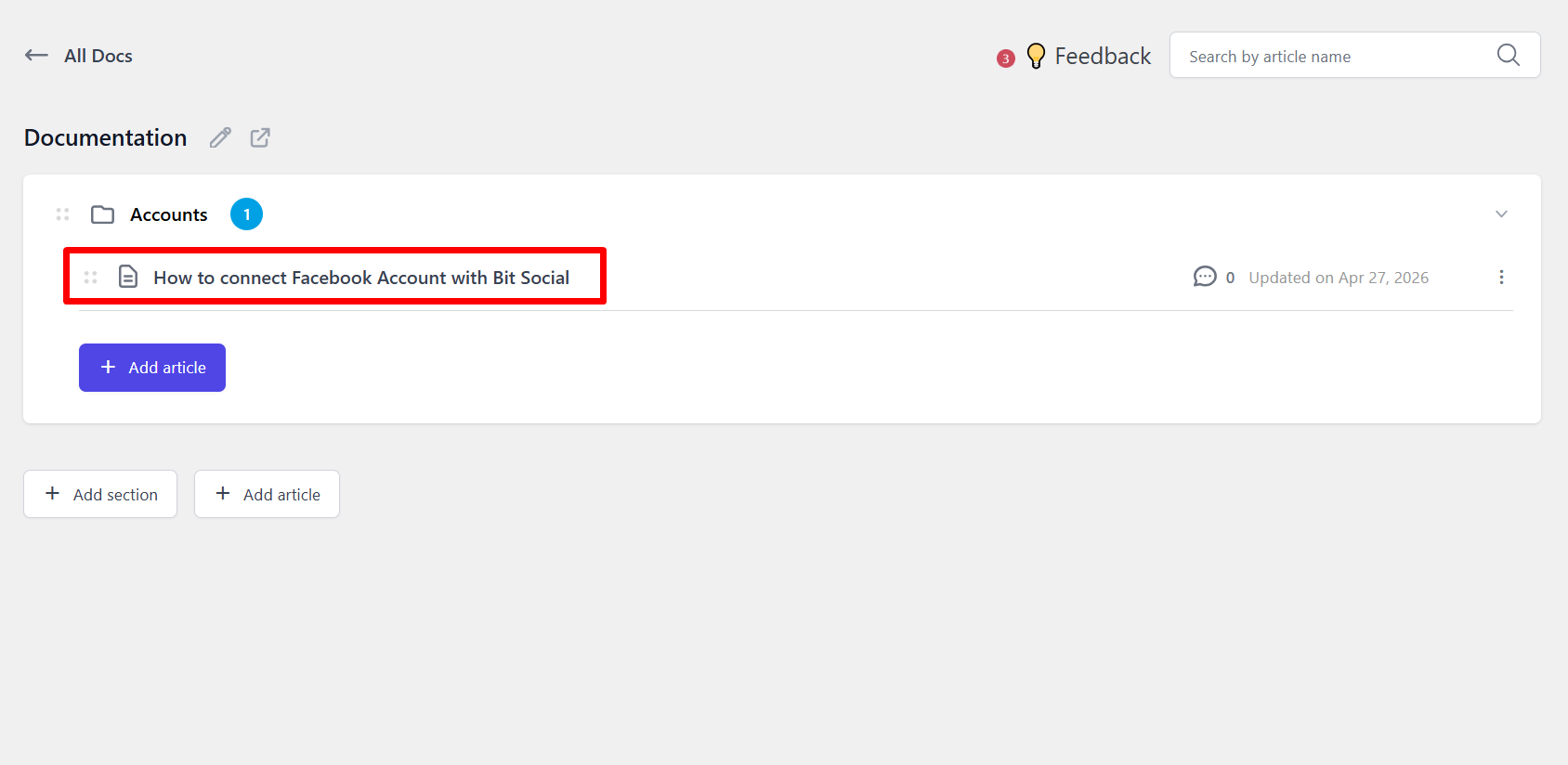
Click on Add Article, and suppose we want to add an article like “How to Connect Facebook Account with Bit Social.”
Click on the article and add the content of the article to it.
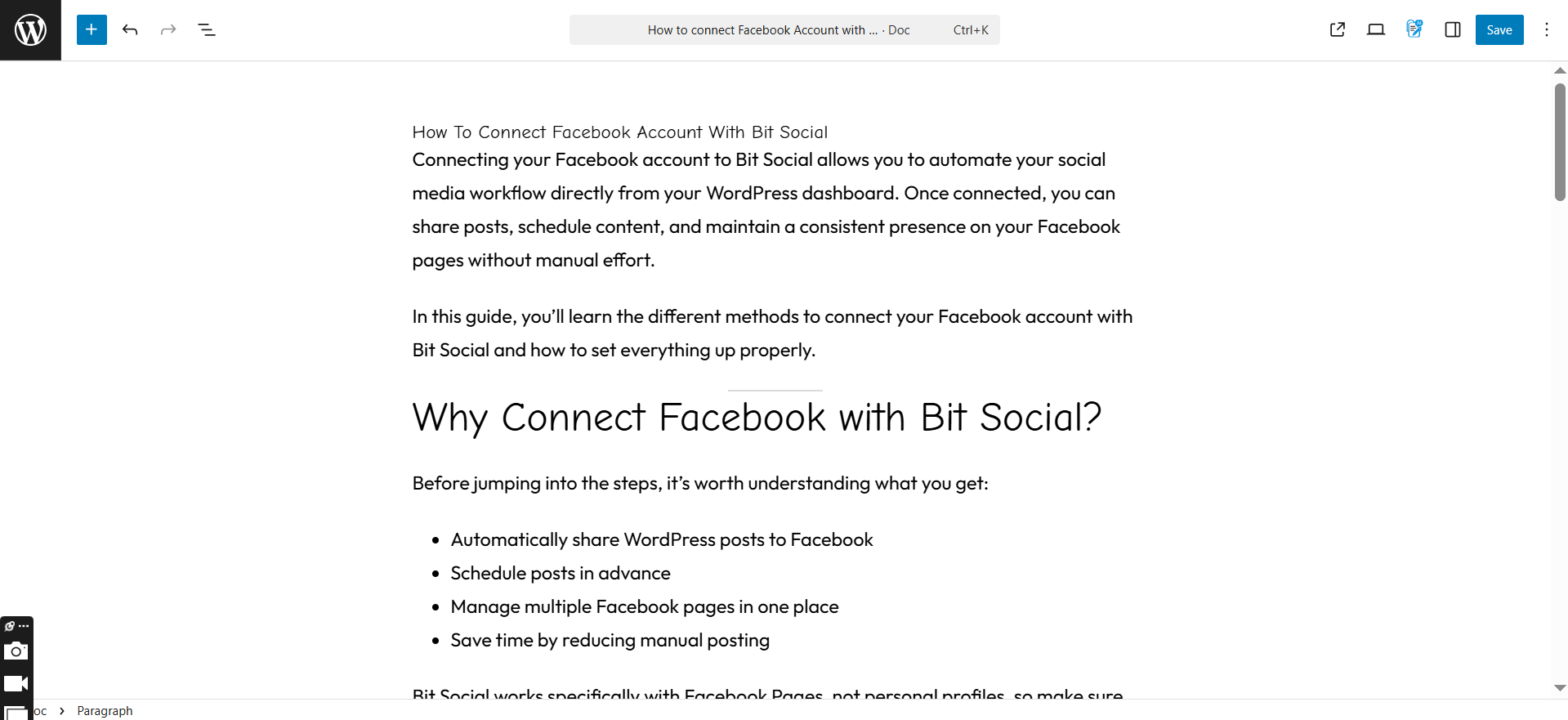
Now, save it and keep it as a draft. In the meantime, let’s set up Bit Social
Step 02: Let’s Set Up Auto-Posting With Bit Social
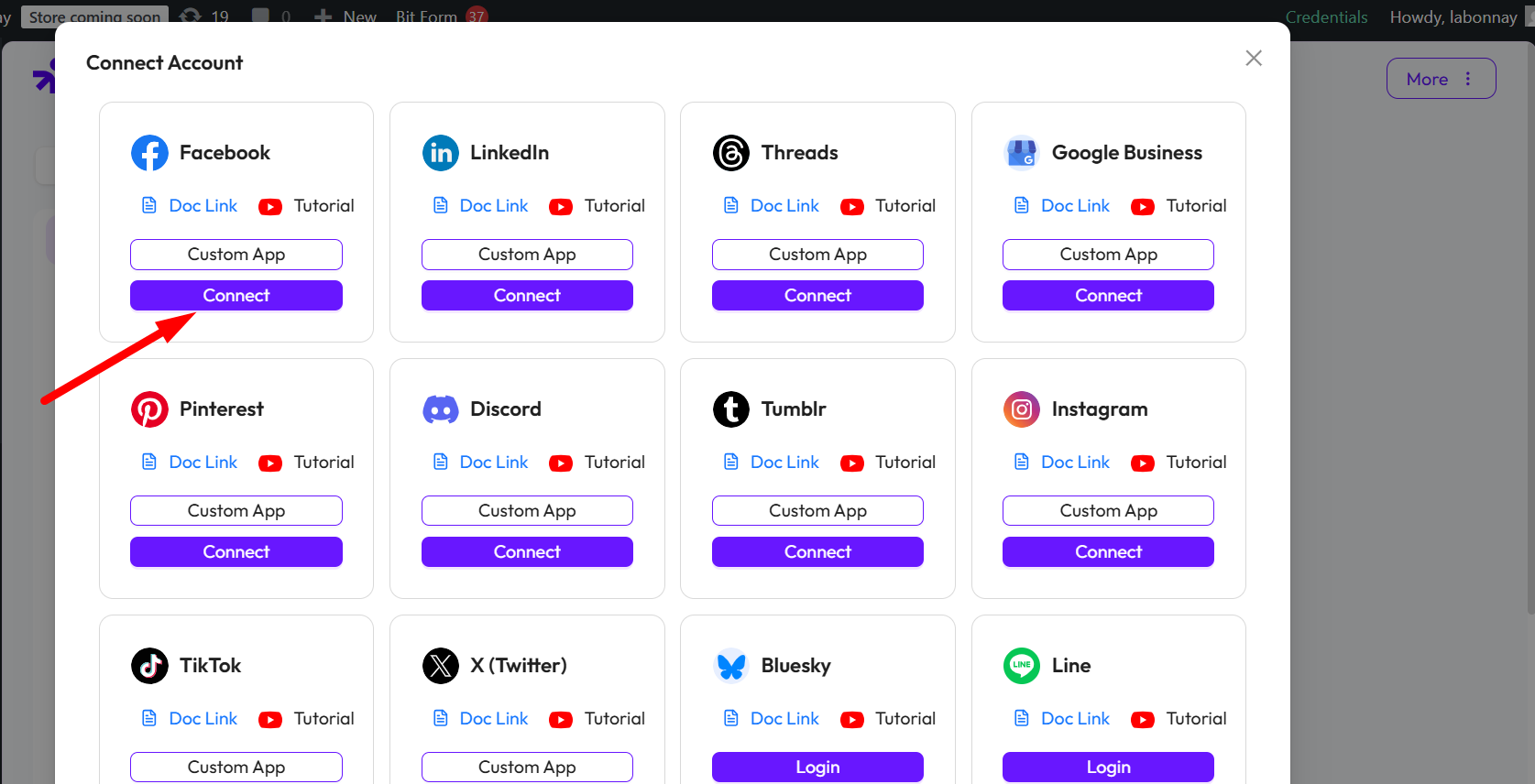
After installing and activating the Bit Social Plugin, the first thing you need to do is connect your social media accounts. Go to the Accounts section and choose the platforms you want to share your docs on.
Click on “Connect” to connect your account using the One Click Connect Method, because it is easy and Simple. There is also an option called “Custom App,” which is a bit tricky but gives you more control.
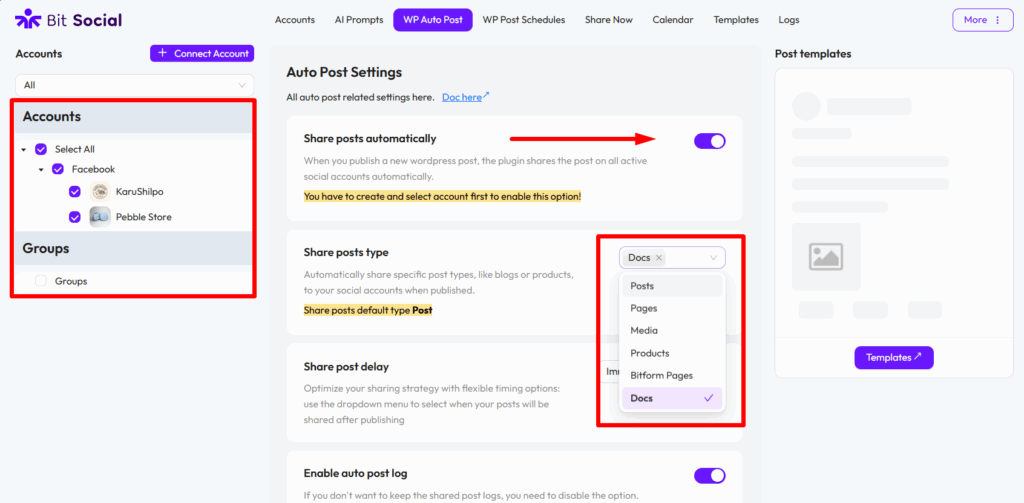
After connecting the account, set up the Auto Post feature. Go to the WP Auto Post feature, then select your account and enable Sharing Auto Post.
Next, you have to select your Posting Type, and that is the important part here. Bit social offers different posting types. From these, select “Docs” as the Posting Type and select the Post Delay.
Note: The Docs option will only appear in the Posting Type list if weDocs is already installed and active on your site.
Okay, now let’s create the template of your social media post. Go to the “Templates” section. In the custom message option, write your caption, and you can use Smart Tags to fetch data from your website.
Here I have created a template using Smart Tags. If you want to know more about Smart Tags, just go through the details.
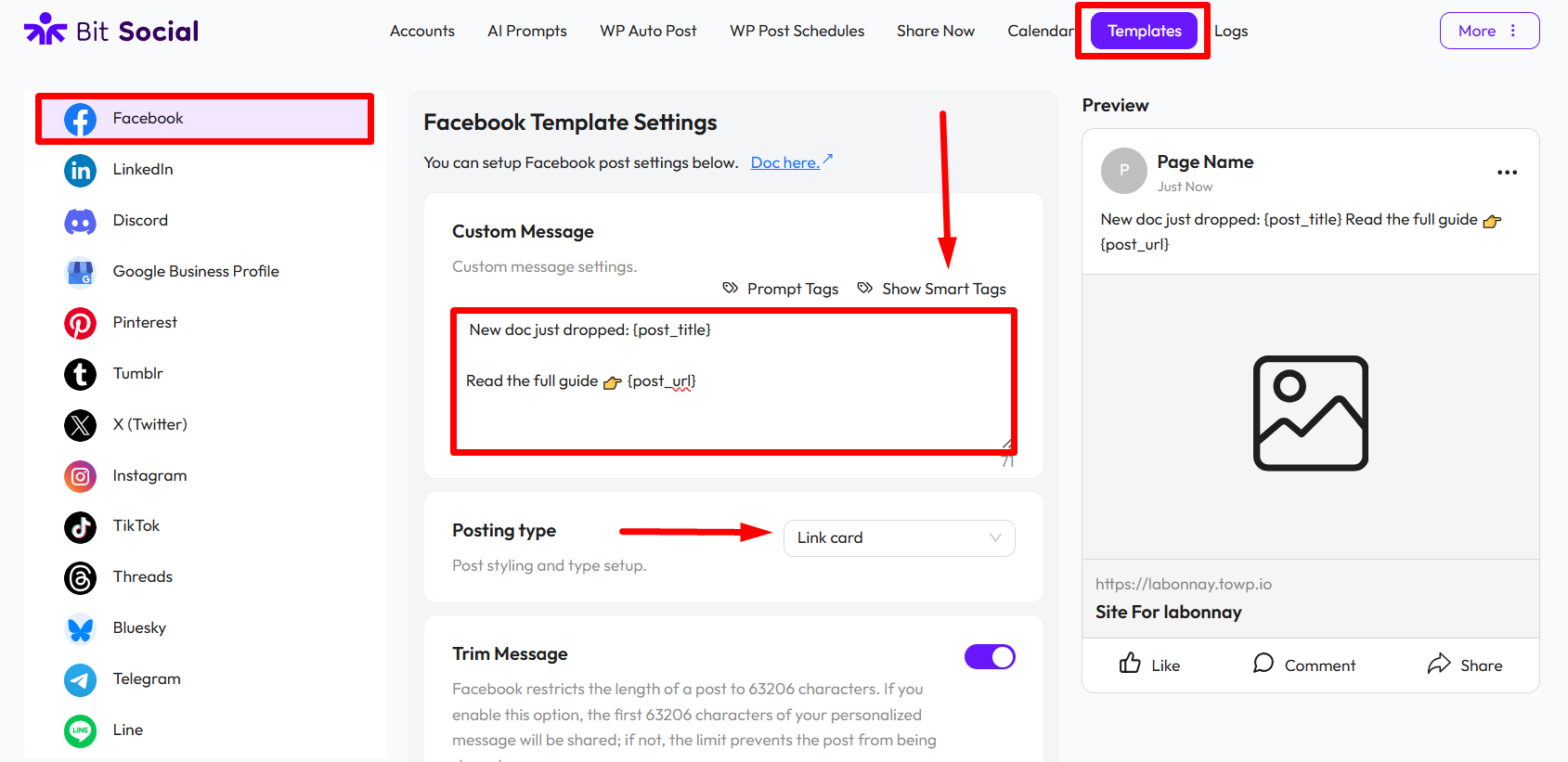
Your Bit Social setup is all done.
Now go back to the article you saved as a draft in weDocs and change the status to Published.
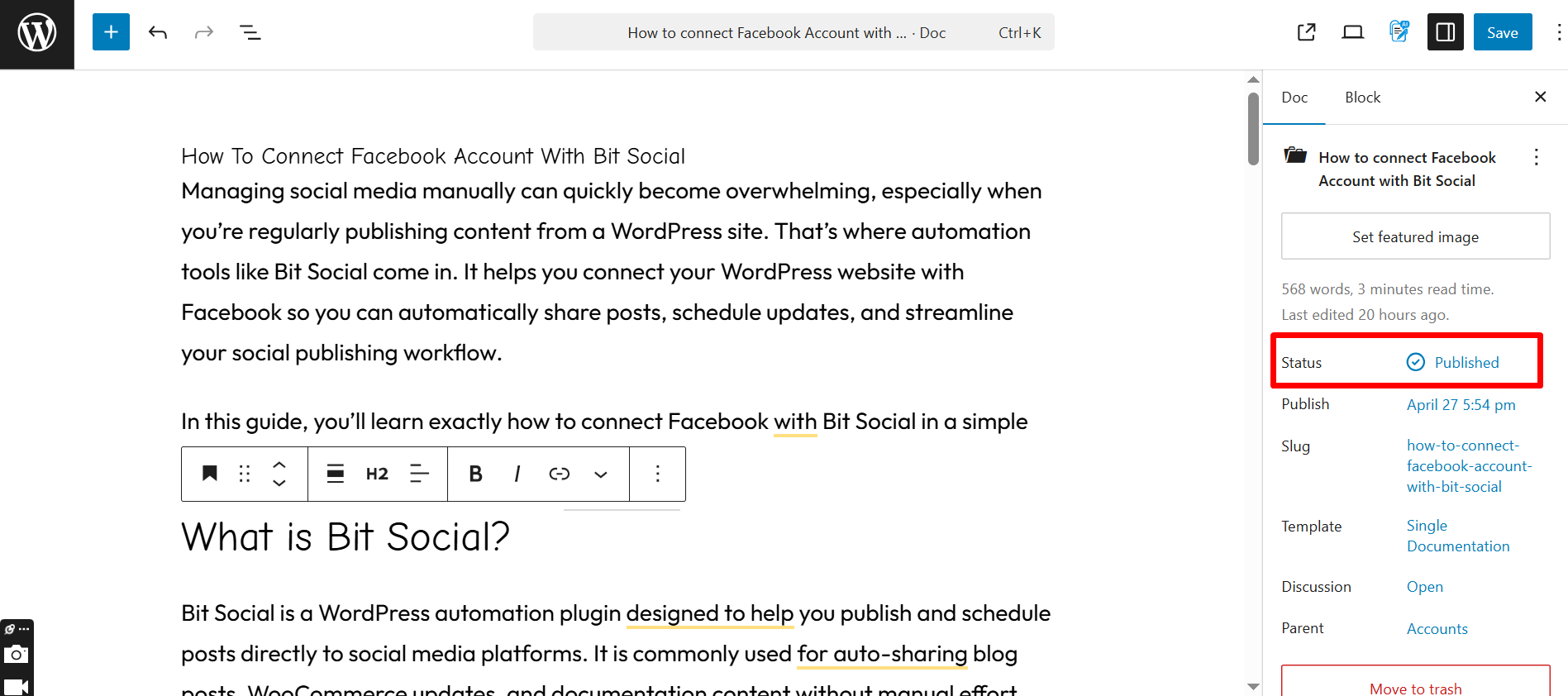
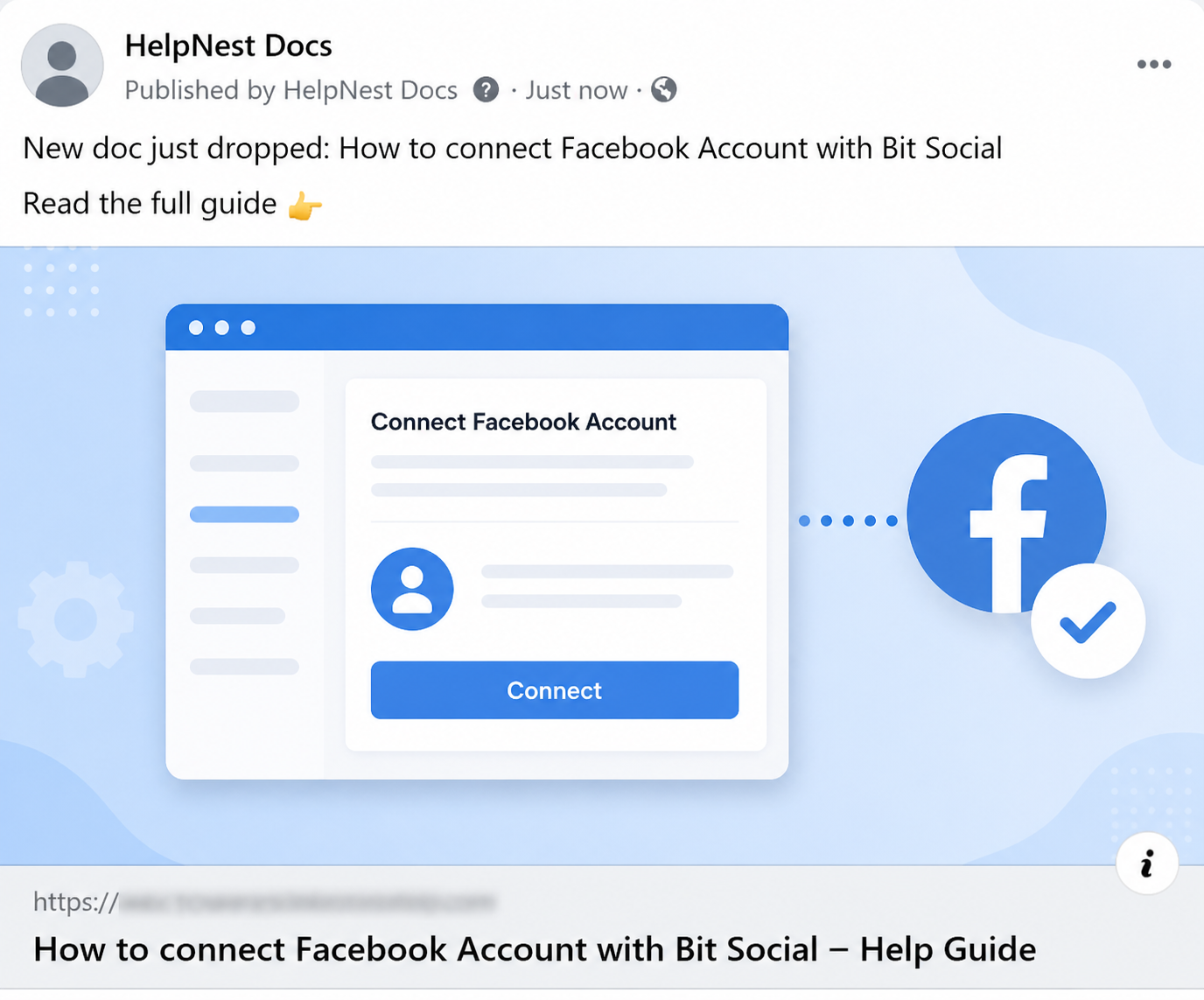
Now go to your social media and check if it has been posted or not.
Why Sharing Product Documentation on Social Media Matters
Every doc you write answers a real question and indirectly shows that your product is worth trusting. But most of the time, that doc just stays on your site until someone faces a problem with it.
It builds trust without selling anything: Most social media feeds are full of products that tell you how great they are. Documentation is different. It shows, not tells. When you share a how-to guide or a troubleshooting doc, you’re just helping, and people notice that. It builds trust and credibility for your brand.
Useful content gets shared, promotional content gets ignored: A post that says “Our plugin is the best!” gets scrolled past. A post that says “Here’s how to fix the most common WooCommerce checkout error” is often saved and shared. LinkedIn and Facebook, in particular, reward this kind of content because it’s genuinely useful to the people seeing it.
It reaches people before they face a problem: Most users only look for documentation when something goes wrong. But if you share a feature walkthrough on social media, you’re reaching people before the frustration kicks in.
For example, sharing a doc about a new integration you just launched means your existing users learn about it instantly, rather than discovering it months later by accident.
Manual sharing just doesn’t happen consistently: You publish a doc intending to share it later, but honestly, that “later” often never happens. And even when it does, you usually end up posting it on just one platform while the others are missed.
With Bit Social, you just set it up once. After that, every time you publish a doc, it automatically goes out to your connected social accounts using the template you created.
Final Thoughts
At the beginning of this guide, we talked about how most product documentation simply gets hidden on the website. By sharing those docs on social media, your content gets a new source of visibility and engagement.
With weDocs, your documentation stays organised, searchable, and properly structured on your WordPress site. Bit Social helps you automatically reach your audience across all your connected social platforms whenever you publish any doc.
So this process turns documentation into more than just a support resource. Your docs start helping you build trust and reach users before they even ask for help.
So if manually sharing documentation on social media feels like extra work, this workflow makes the process much easier. Just install the plugins, follow the setup, and publish your docs like you normally do, and watch your content start reaching more people on its own.
ase your product naturally, and turn readers into potential customers.
Subscribe to
weDocs blog
We send weekly newsletters,
no spam for sure!