
The AI Doc Writer helps you create clear documentation in less time. You can turn short notes into complete articles, update old content, or generate new sections without starting from scratch. It understands your topic, suggests better phrasing, and keeps the tone consistent across all your docs.
It works inside the weDocs editor, so you never have to switch tools. You can focus on the ideas, and the AI takes care of the writing. This makes it easier to maintain large documentation, publish updates faster, and deliver a better learning experience for your users.
We are going to show you how to configure and use the AI Doc writer to write documentation faster.
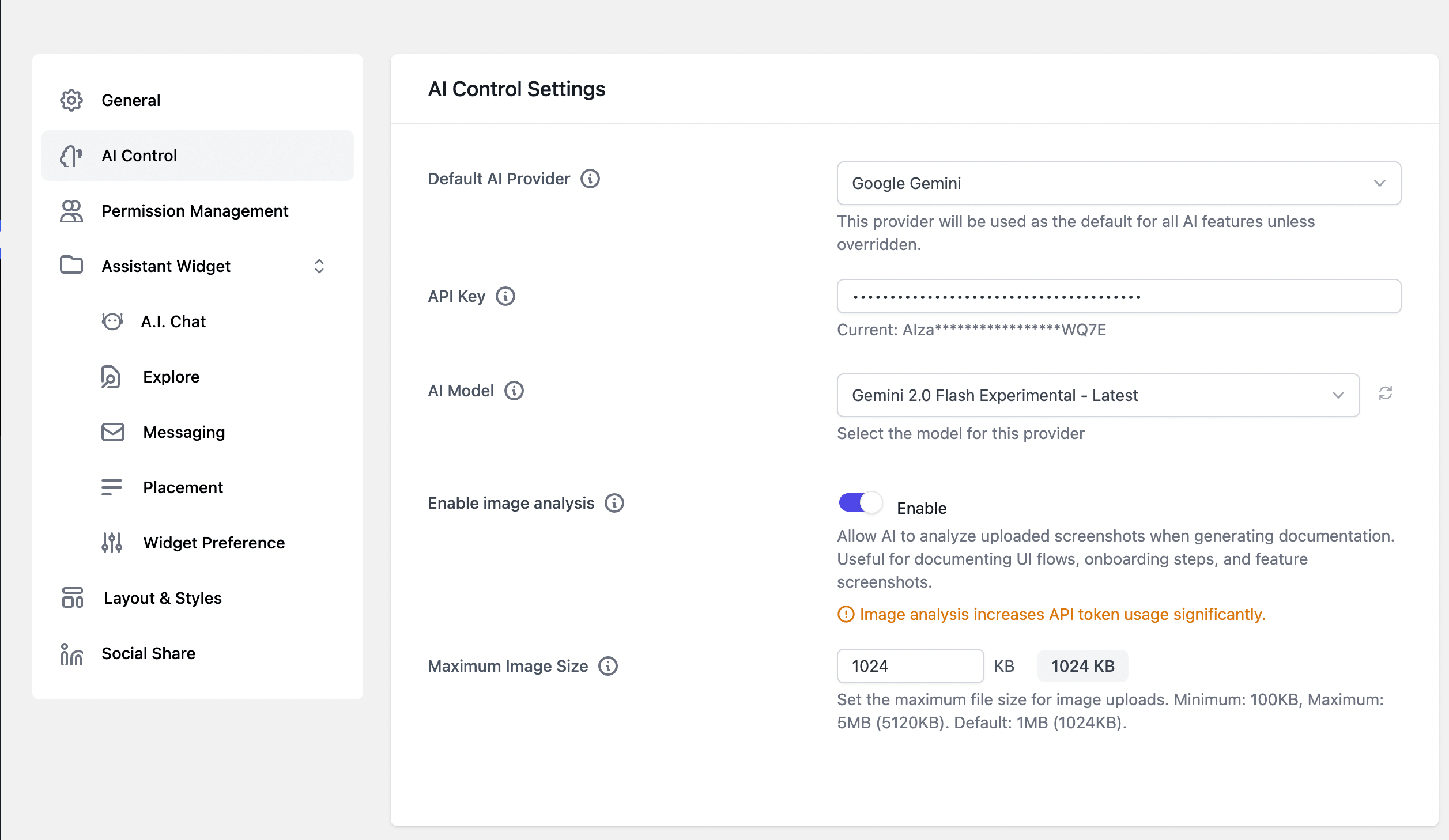
First, go to weDocs—> Settings–> AI Control. There, you need to choose the AI Model, add the API Key and choose the AI version you want to use-
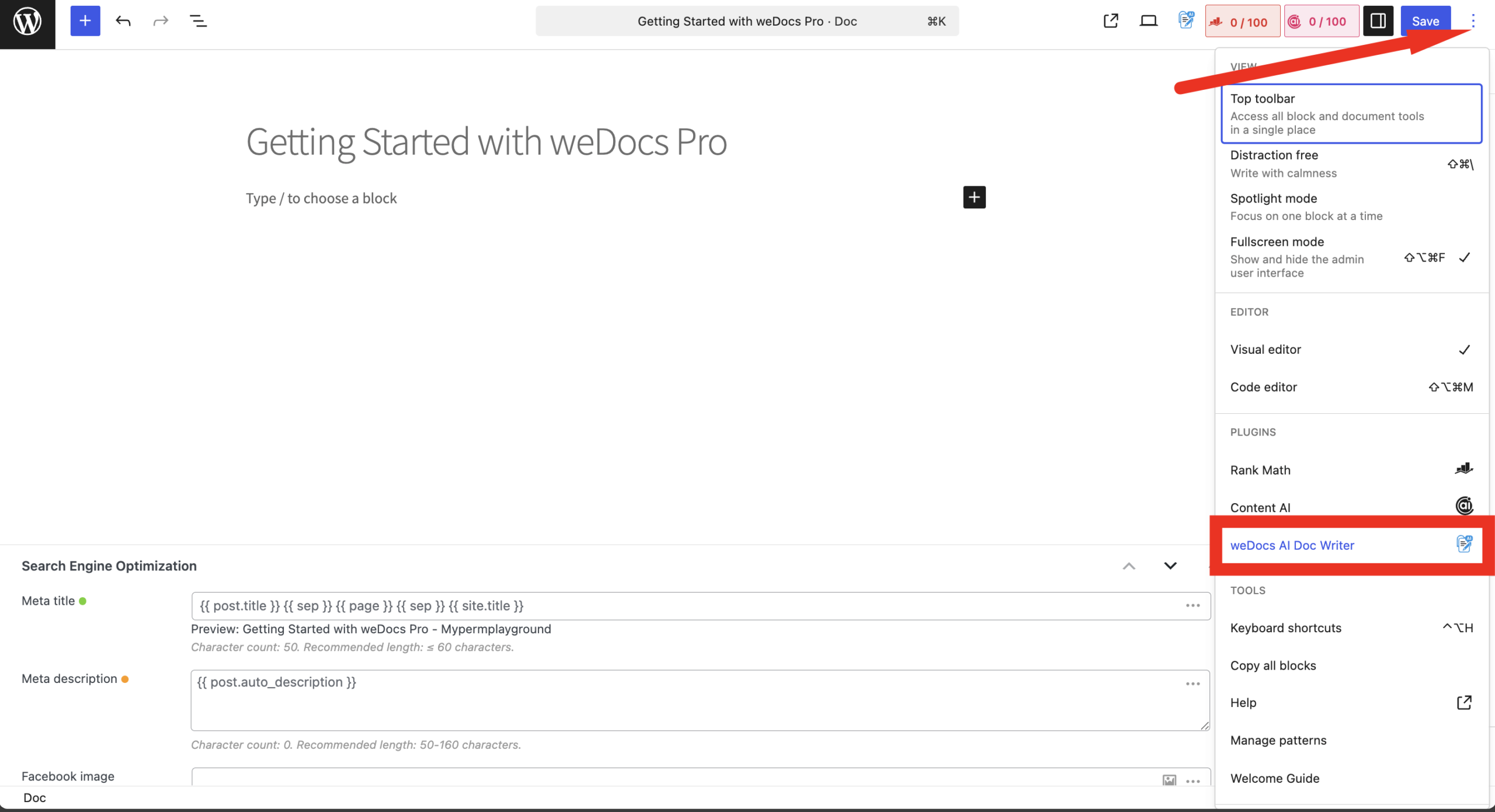
Now, to use the AI Doc Writer, open a doc from weDocs–> Docs. Then, click on the “Three Dot” menu on the top-right hand side and choose the AI Doc Writer option-
Now you will get a pop-up. Write the heading, add the keyword, and give the proper prompt to generate the kind of documentation you want. If you want you can create a new documentation or you can overwrite the exisitng one. Click on the Generate Content button to start-

Based on the documentation, it will take some time to generate the content. If you are satisfied with the result then you can click on the Accept & Insert option. Or you can click on the Regenerate if you are not satisfied.
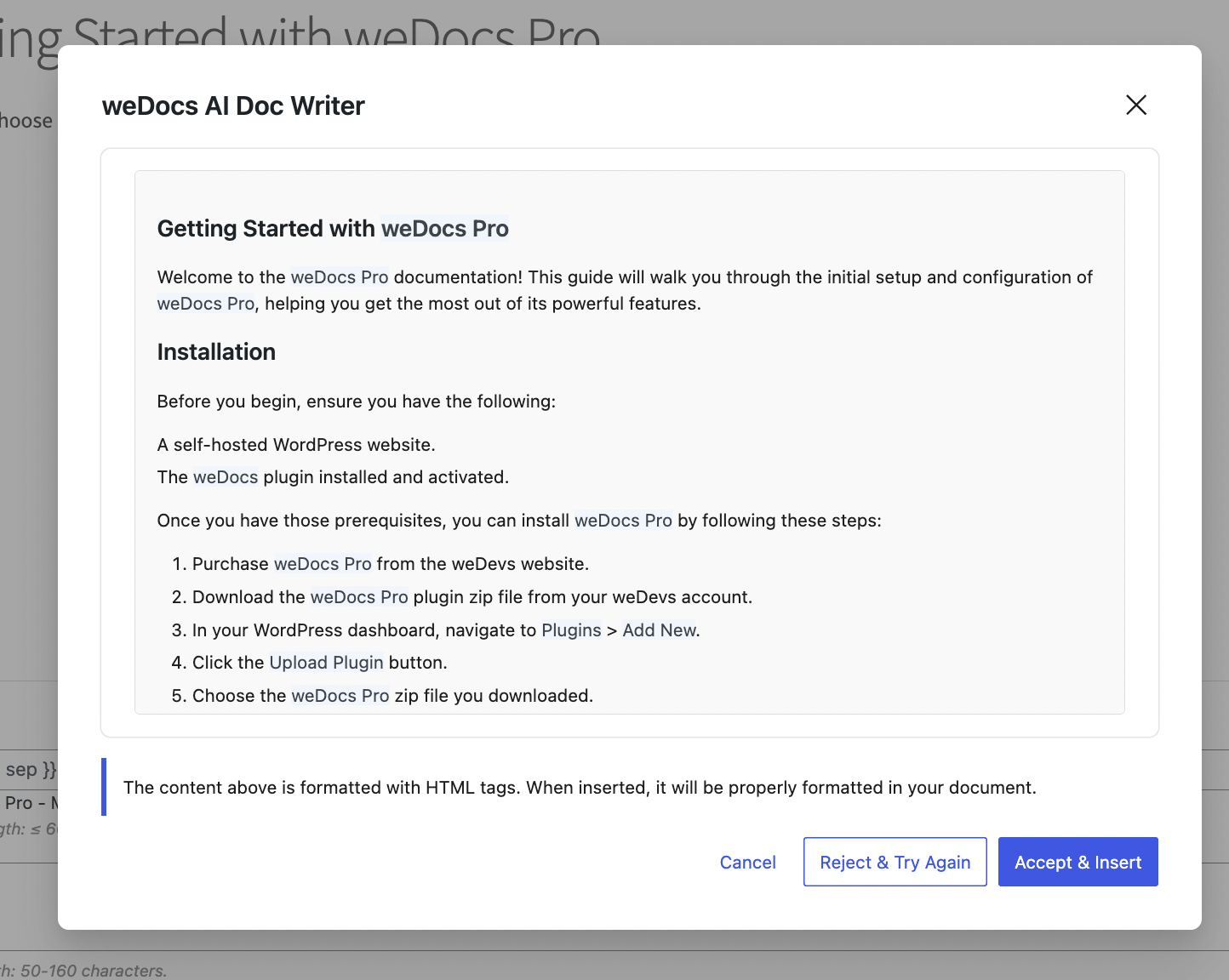
You can also upload images to make the AI understand more about the UI of the process-
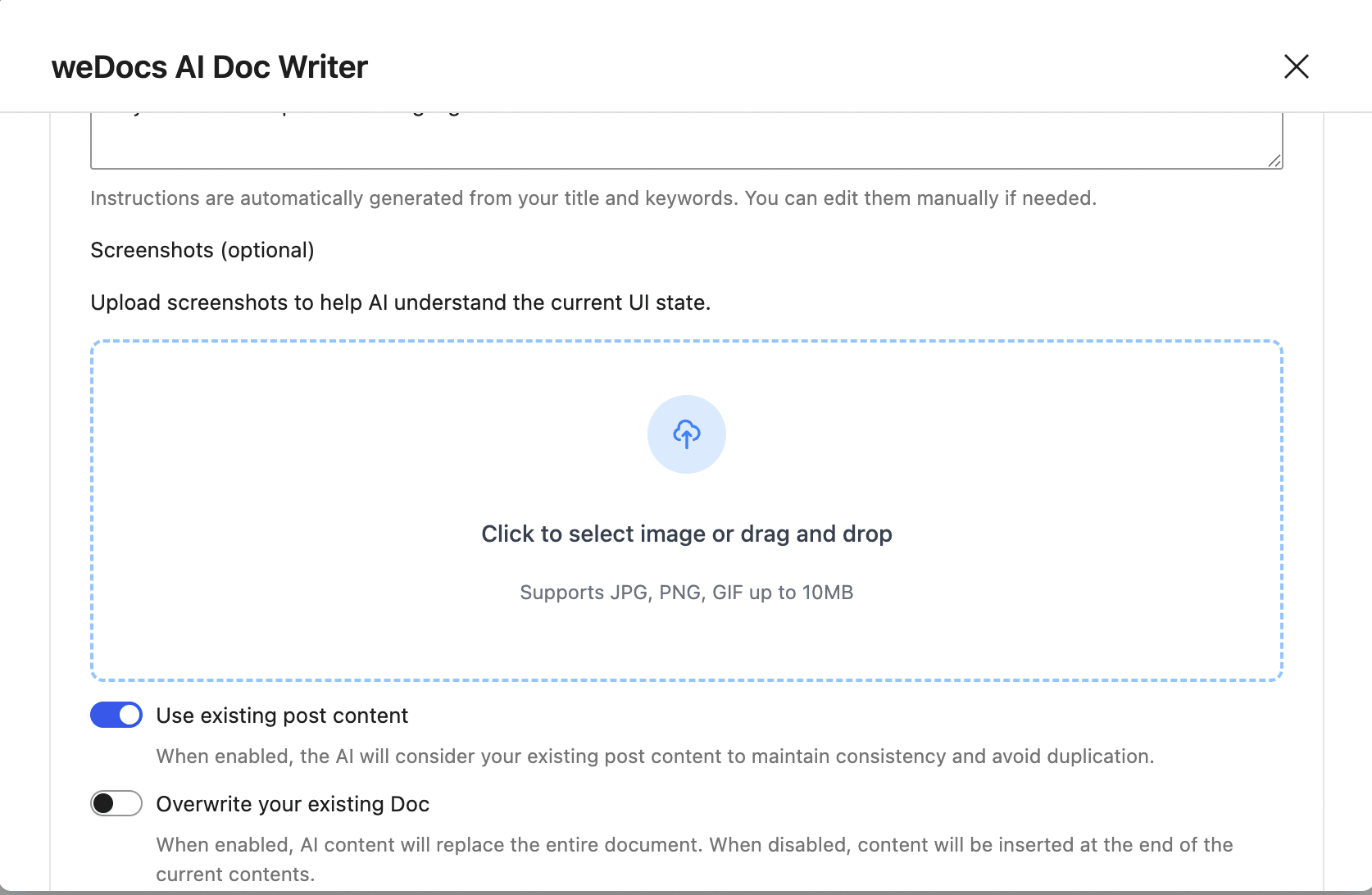
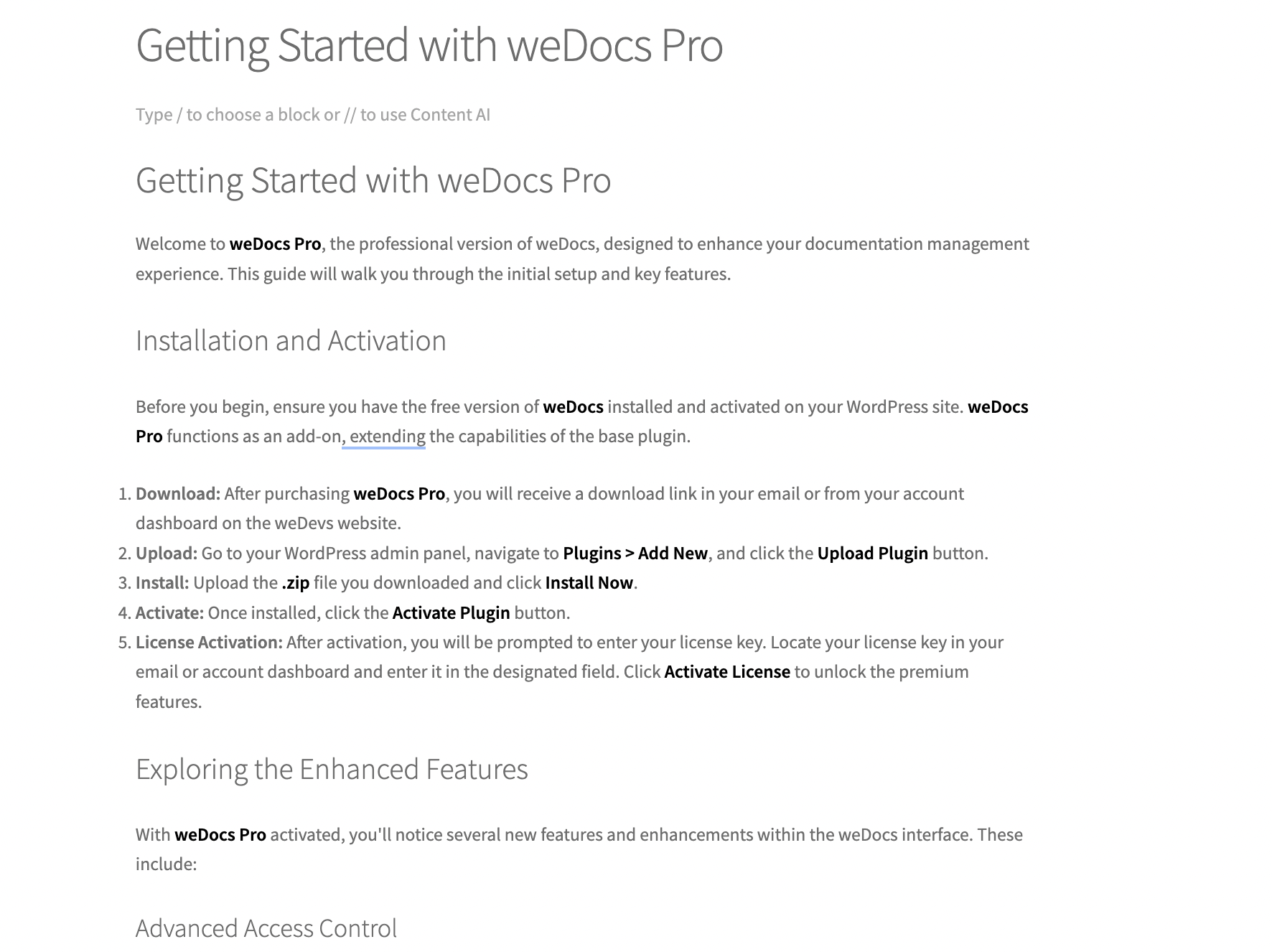
This is the result-
That’s it. This is how you can use the AI Doc Writer.