
You can configure the WordPress knowledgebase plugin on your right from the settings page. Here you’ll have different options to smoothly manage your product’s knowledge base.
To get started, navigate to WP Admin–> weDocs–> Settings, you will find different configuration options to manage your documentation efficiently with weDocs.
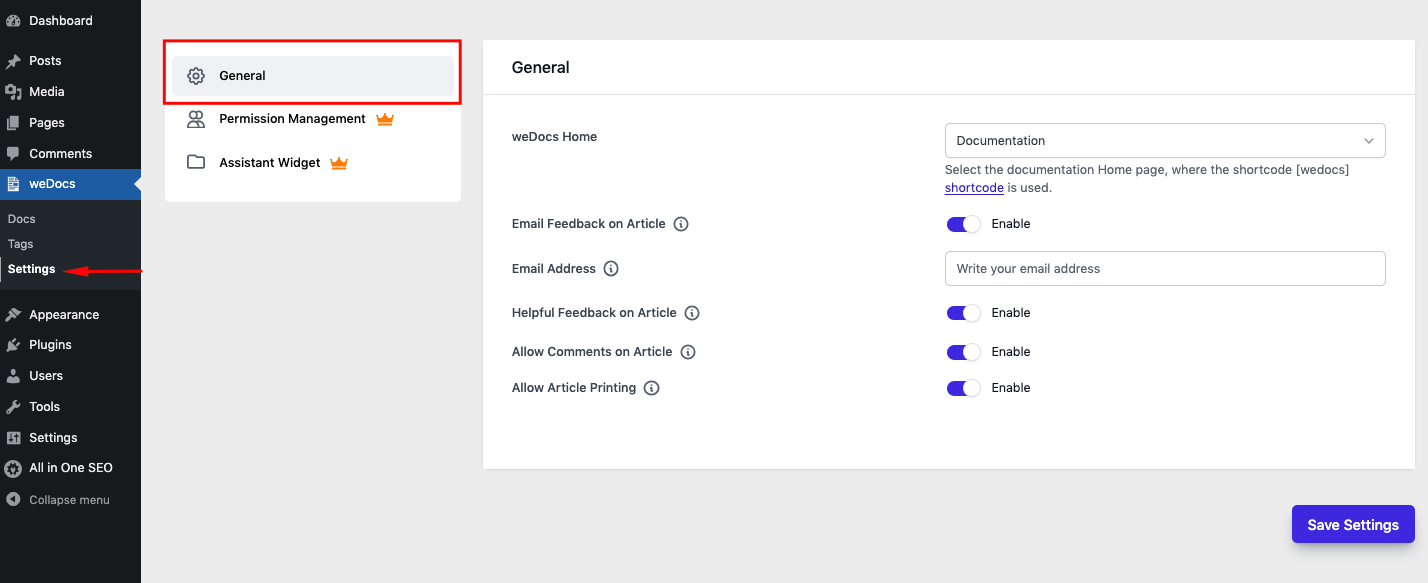
Note: In the free version, you can only customize some general settings. You need to activate the premium version to use the advanced features of weDocs.
Available fields in settings
weDocs Home: Select the page you want to show your documentation on. weDocs created a default Documentation page that shows all the documentation. However, you can choose any other page to show the documentation.
Email Feedback: If you enable this option then users can send you feedback regarding any issues or update the documentation.
Email Address: If you enable the Email Feedback option then this option will be visible on the Settings page. Enter the email address you want to receive the feedback.
Helpful Feedback on Article: If you enable this option then users can send you helpful feedback links.
Allow Comments: Enabling this option will allow your user to post comments under the documentation.
Allow Article Printing: Whether you want your article to be printable.