

The FAQ feature in weDocs lets you build grouped question and answer sections and place them anywhere on your site with a shortcode. It is available in the free version of weDocs.
You create groups, add questions inside each group, then drop one shortcode into any page or post. The front end renders everything as an accordion, so visitors expand only the answer they need.
What You Can Do With weDocs FAQ
- Create as many FAQ groups as you need and give each one a title and an icon
- Add questions and formatted answers inside each group
- Reorder groups and questions by dragging them
- Turn a group on or off without deleting it
- Duplicate a group to reuse its structure
- Show every group or only selected ones using shortcode attributes
Step 1. Open the FAQ Page
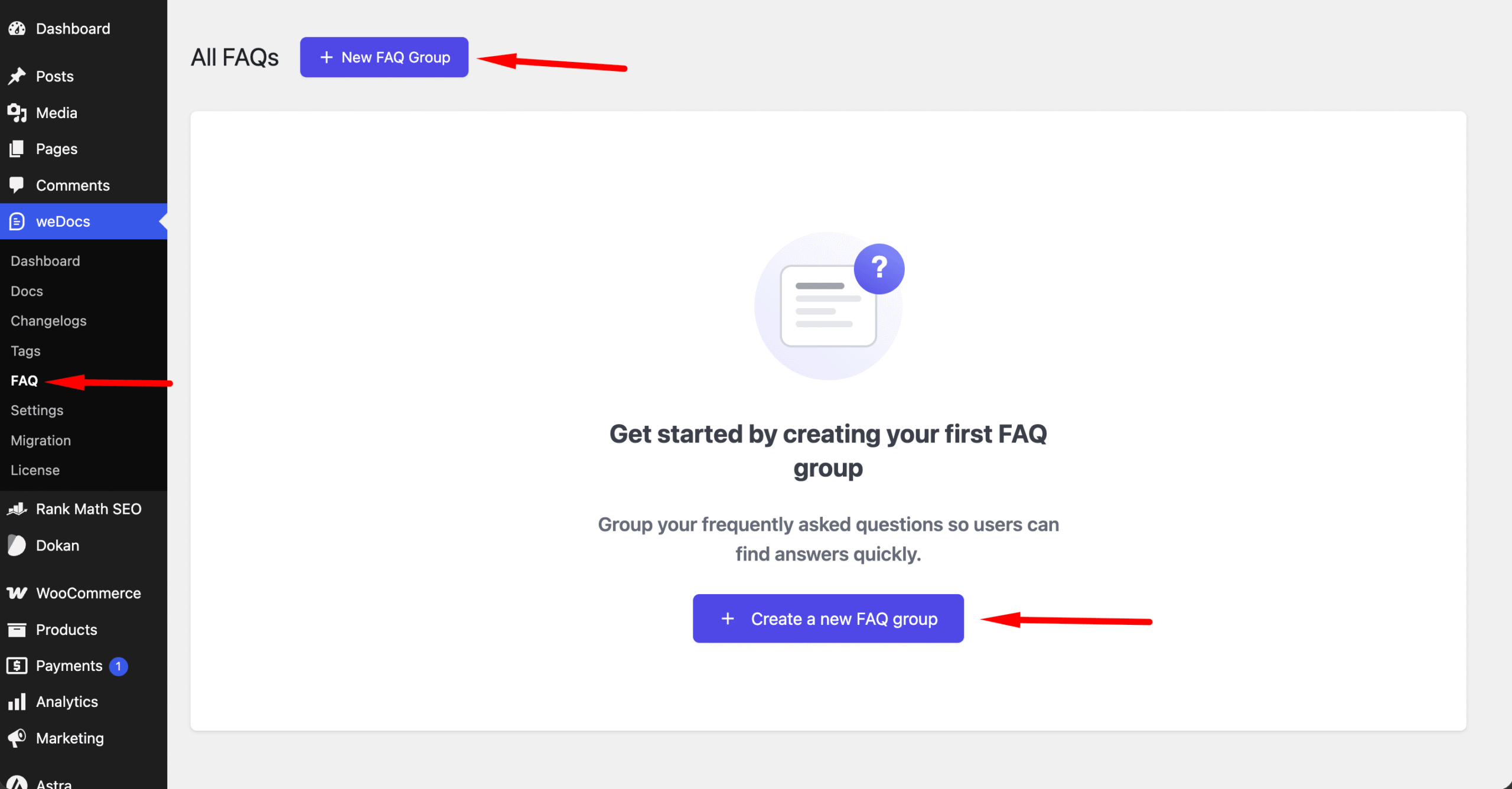
From your WordPress dashboard, go to weDocs > FAQ.
If you have not created anything yet, you see an empty state with a short prompt and a Create a new FAQ group button in the middle of the screen. A New FAQ Group button also sits at the top of the page next to the All FAQs heading. Both buttons do the same thing.
Step 2. Create a FAQ Group
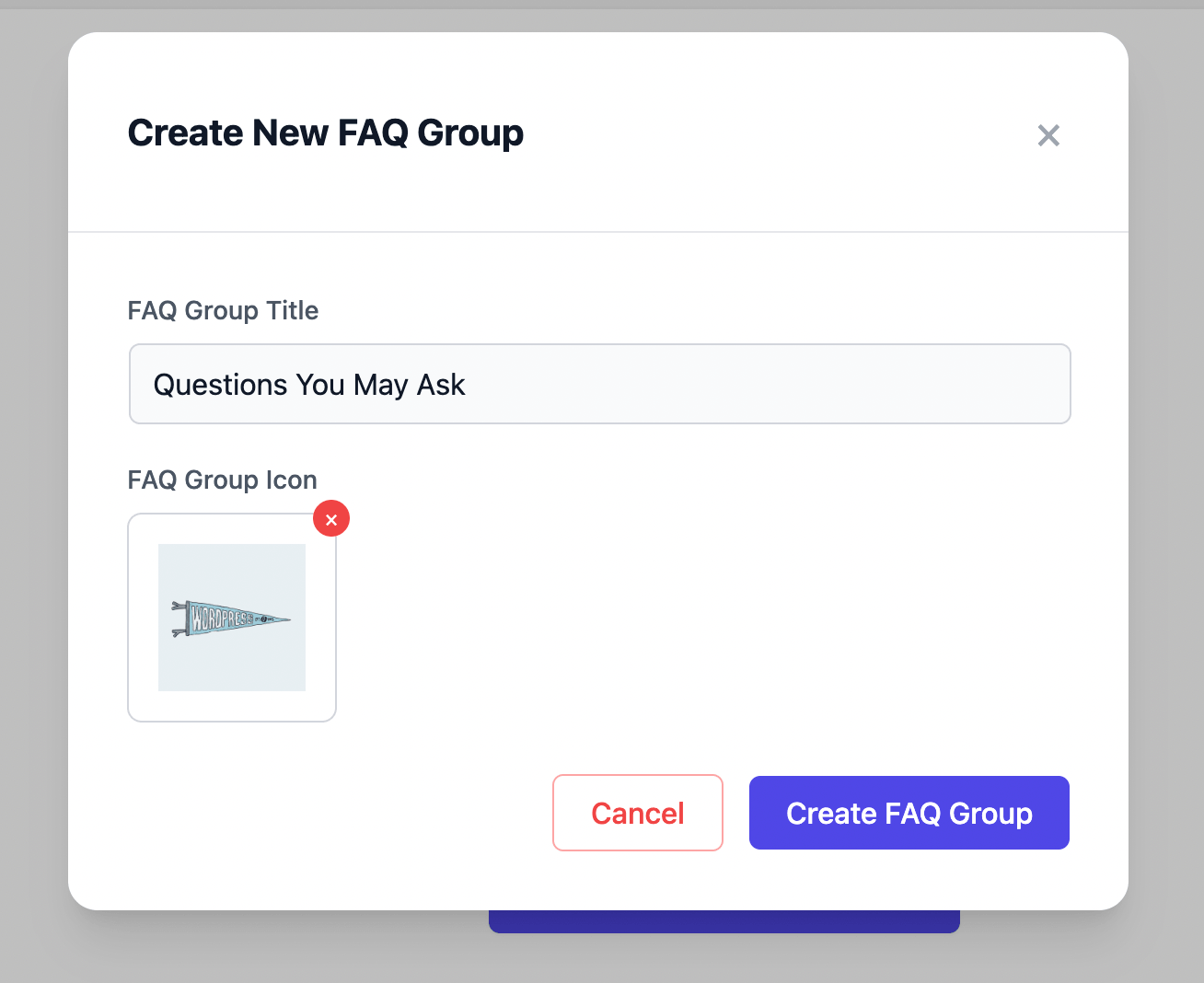
Click either button and the Create New FAQ Group window opens. It has two fields.
- FAQ Group Title. The name shown above this set of questions on the front end, for example Questions You May Ask, Technical Questions, or Pre-Sales Queries.
- FAQ Group Icon. An image that appears beside the group title on the front end. Upload one from your media library, or remove it later with the red cross on the thumbnail.
Click Create FAQ Group to save, or Cancel to close without saving.
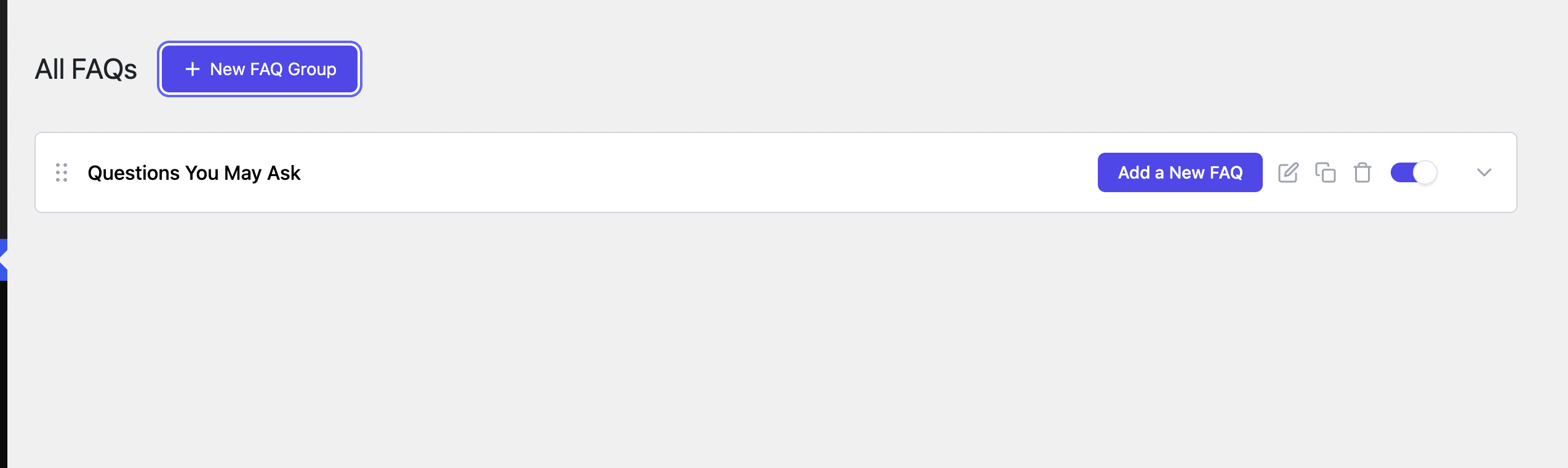
Your new group now appears in the All FAQs list as a single row.
Step 3. Add Questions to a Group
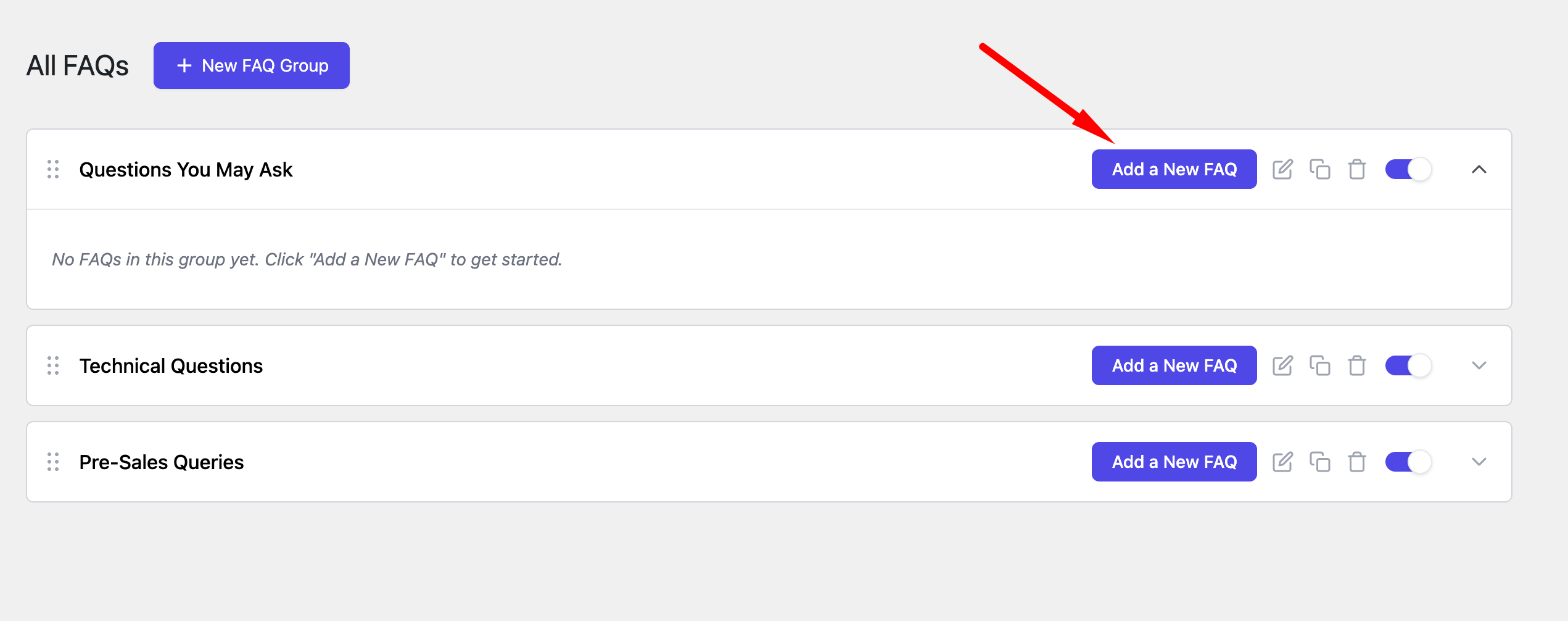
Click Add a New FAQ on the group row. An empty group shows a reminder that reads No FAQs in this group yet until you add the first one.
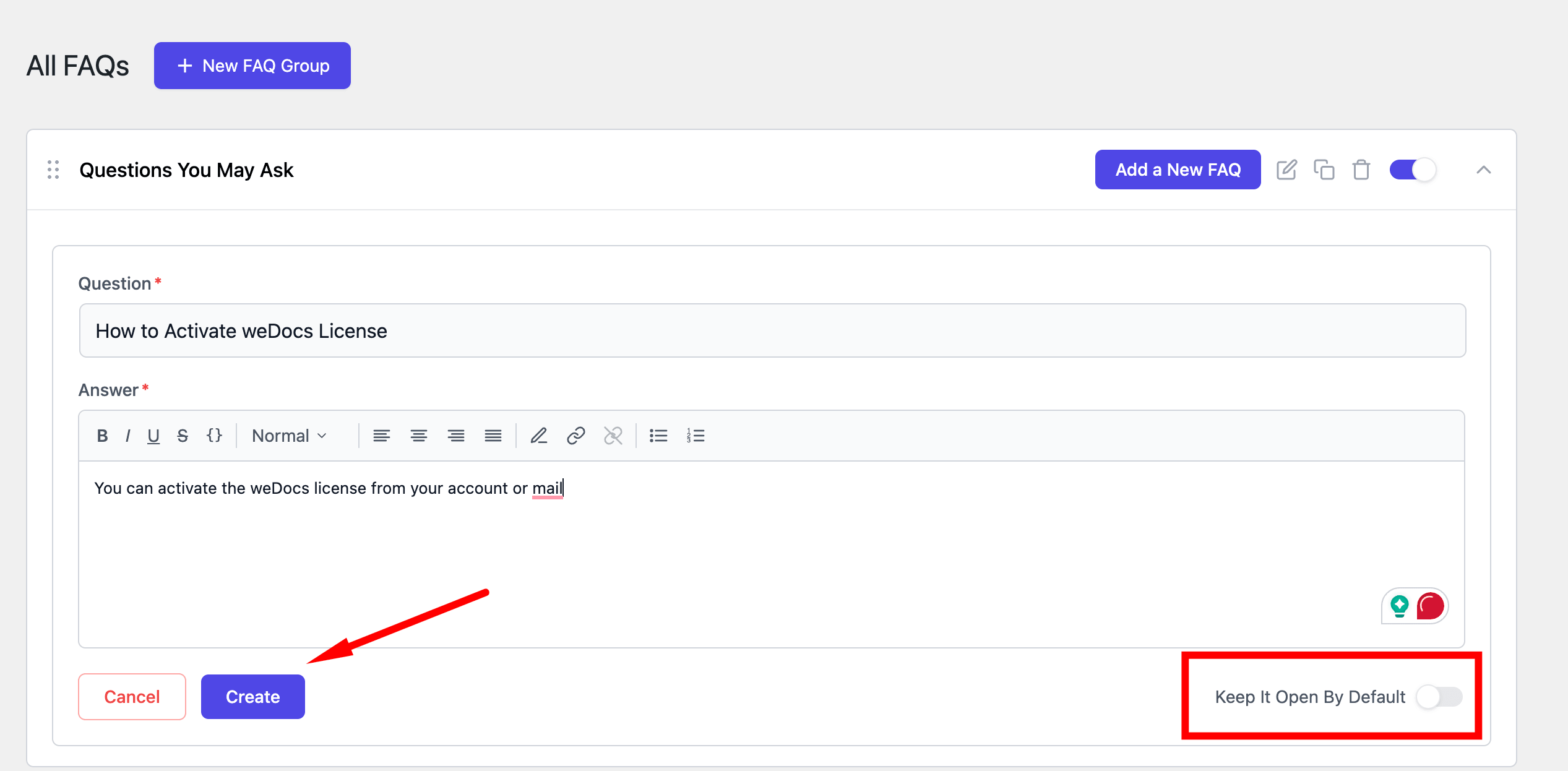
The question form opens inside the group. Fill in both required fields.
- Question. The text visitors click to expand the answer.
- Answer. A rich text editor with bold, italic, underline, strikethrough, inline code, a paragraph format dropdown, four alignment options, text highlighting, link and unlink, and bulleted or numbered lists.
A Keep It Open By Default toggle sits at the bottom right of the form. Switch it on when you want this answer expanded as soon as the page loads. Leave it off and the question starts collapsed.
Click Create to save the question.
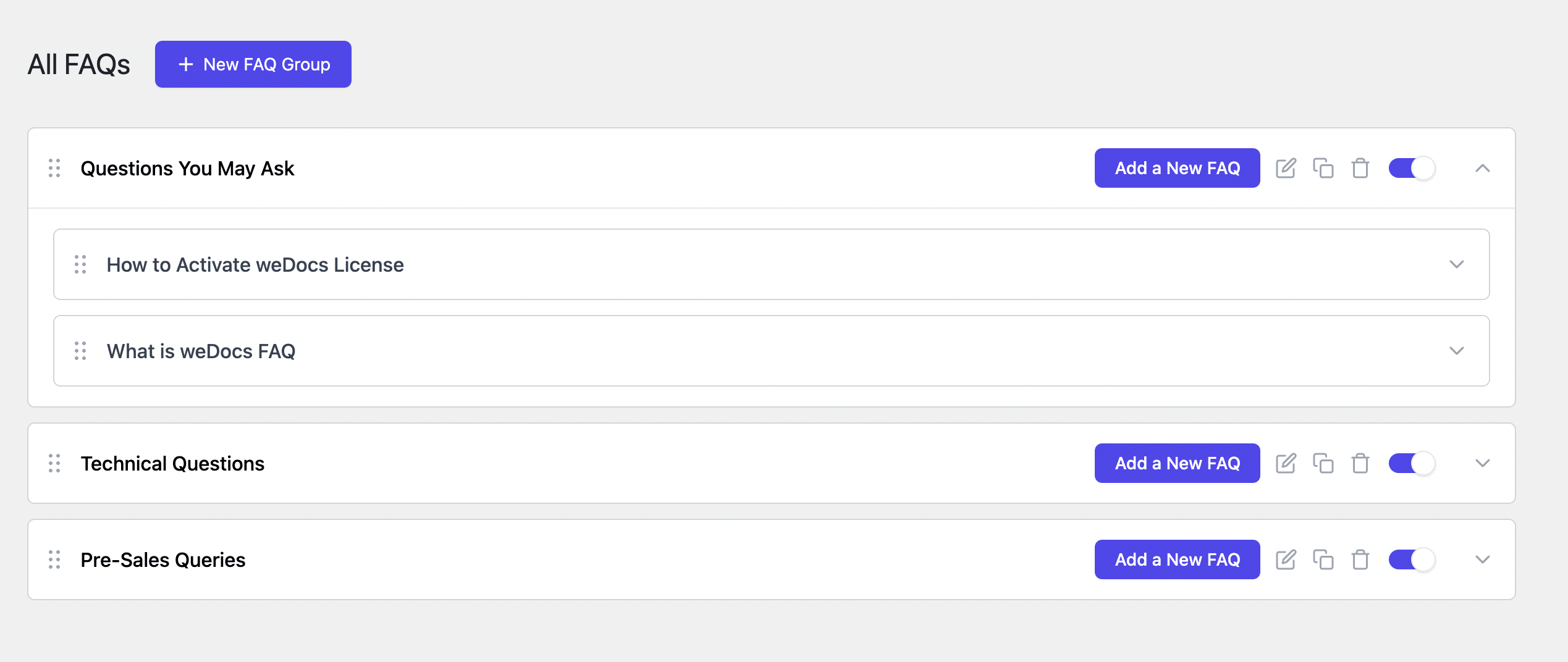
Repeat for every question you want in the group. Saved questions stack inside the group, each with its own drag handle and expand arrow.
Step 4. Manage Your Groups
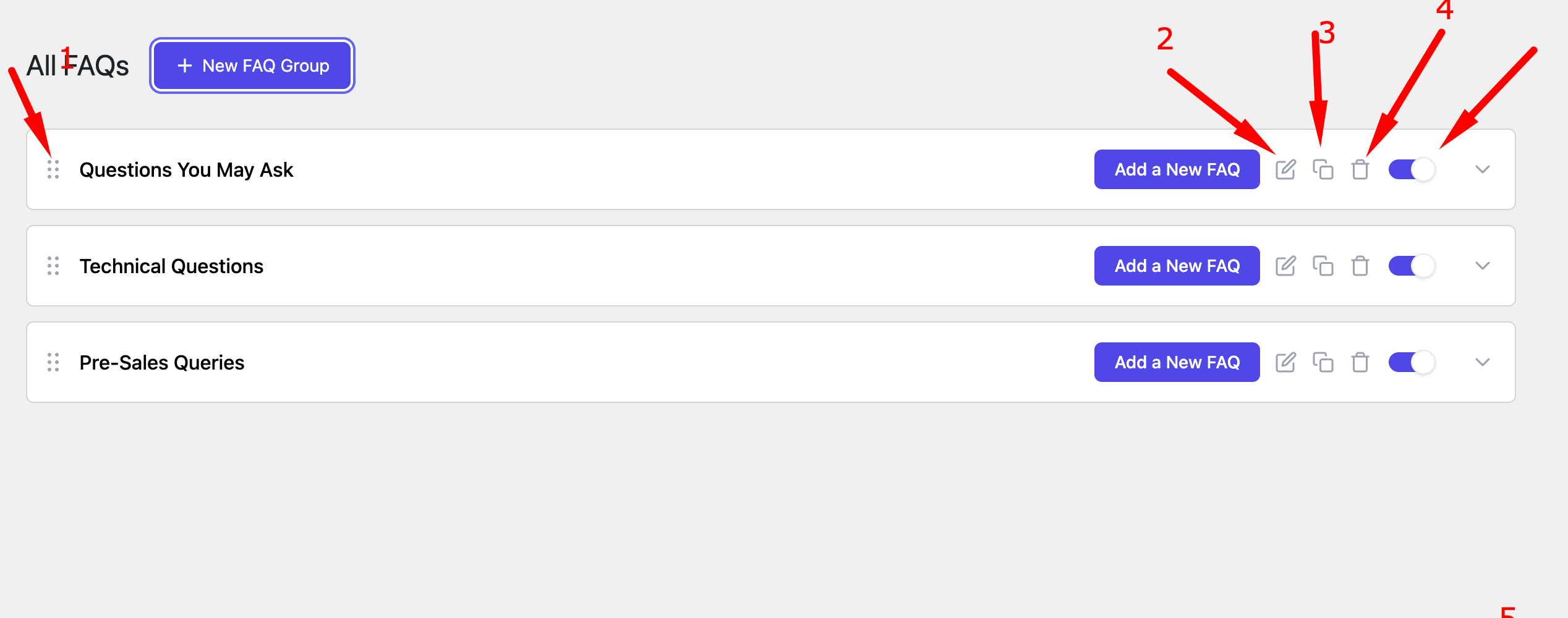
Every group row carries the same set of controls, running from left to right.
- Drag handle. The six dots at the far left. Drag a group up or down to change the order it appears in on the front end. Questions inside a group have their own handles and reorder the same way.
- Add a New FAQ. Opens the question form for that group.
- Edit. Reopens the group window so you can change the title or the icon.
- Duplicate. Creates a copy of the group.
- Delete. Removes the group.
- Enable toggle. Switches the group on or off. A group that is switched off stays in your dashboard but does not render on the front end.
- Expand arrow. The chevron at the far right opens and closes the group so you can see the questions inside it.
Step 5. Copy the FAQ Shortcode
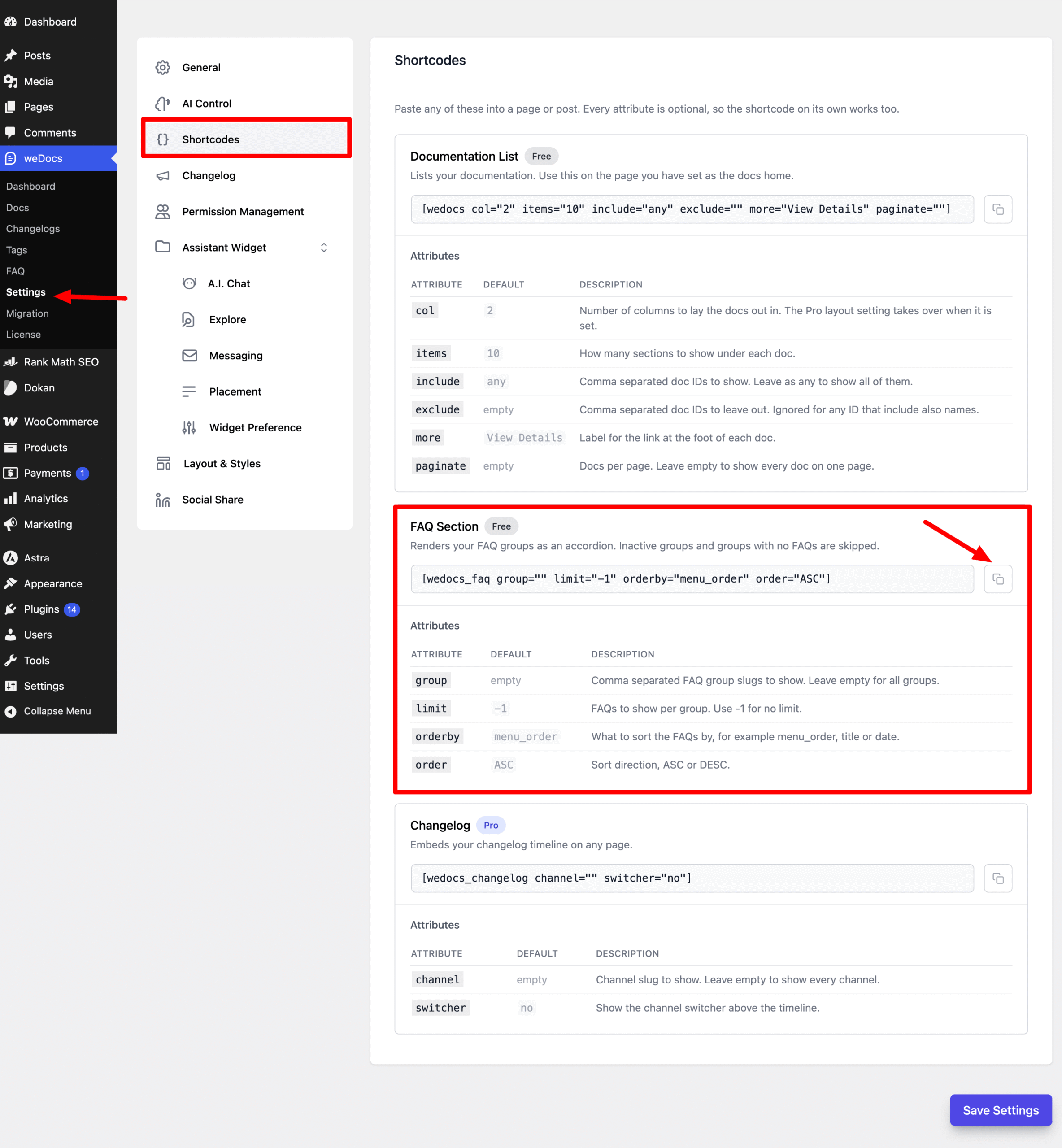
Go to weDocs > Settings and open the Shortcodes tab. Find the card marked FAQ Section, which is labelled Free.
The default shortcode is
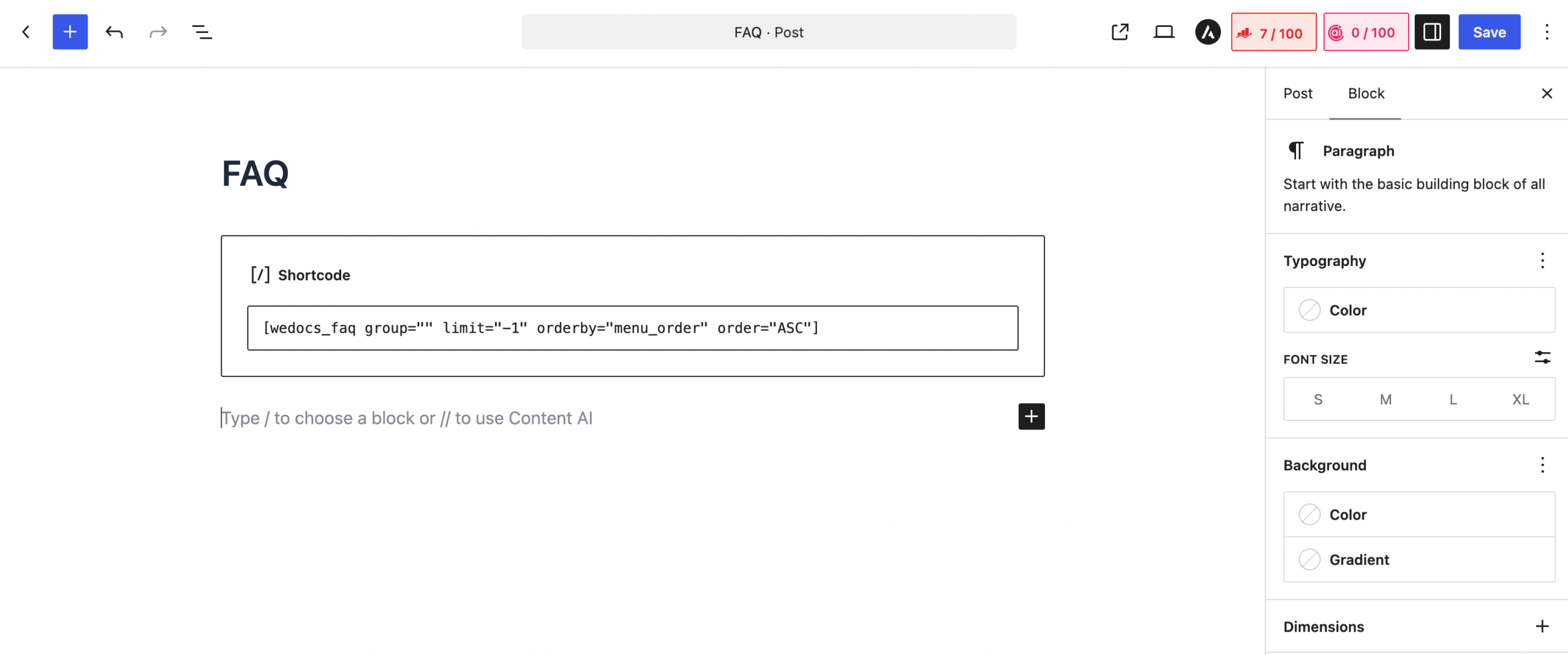
[wedocs_faq group="" limit="-1" orderby="menu_order" order="ASC"]Click the copy icon on the right of the field to copy it. Every attribute is optional, so on its own works too and shows all your active groups.
Shortcode Attributes
| Attribute | Default | What it does |
|---|---|---|
group | empty | Comma separated FAQ group slugs to show. Leave it empty to show every group. |
limit | -1 | How many FAQs to show per group. Use -1 for no limit. |
orderby | menu_order | What to sort the FAQs by, for example menu_order, title, or date. |
order | ASC | Sort direction, either ASC or DESC. |
Use menu_order when you want the order you set by dragging in the dashboard to carry through to the front end.
Step 6. Add the Shortcode to a Page or Post
Open the page or post where the FAQ should appear. Add a Shortcode block, paste the shortcode into it, then save or update.
Step 7. Check the Front End
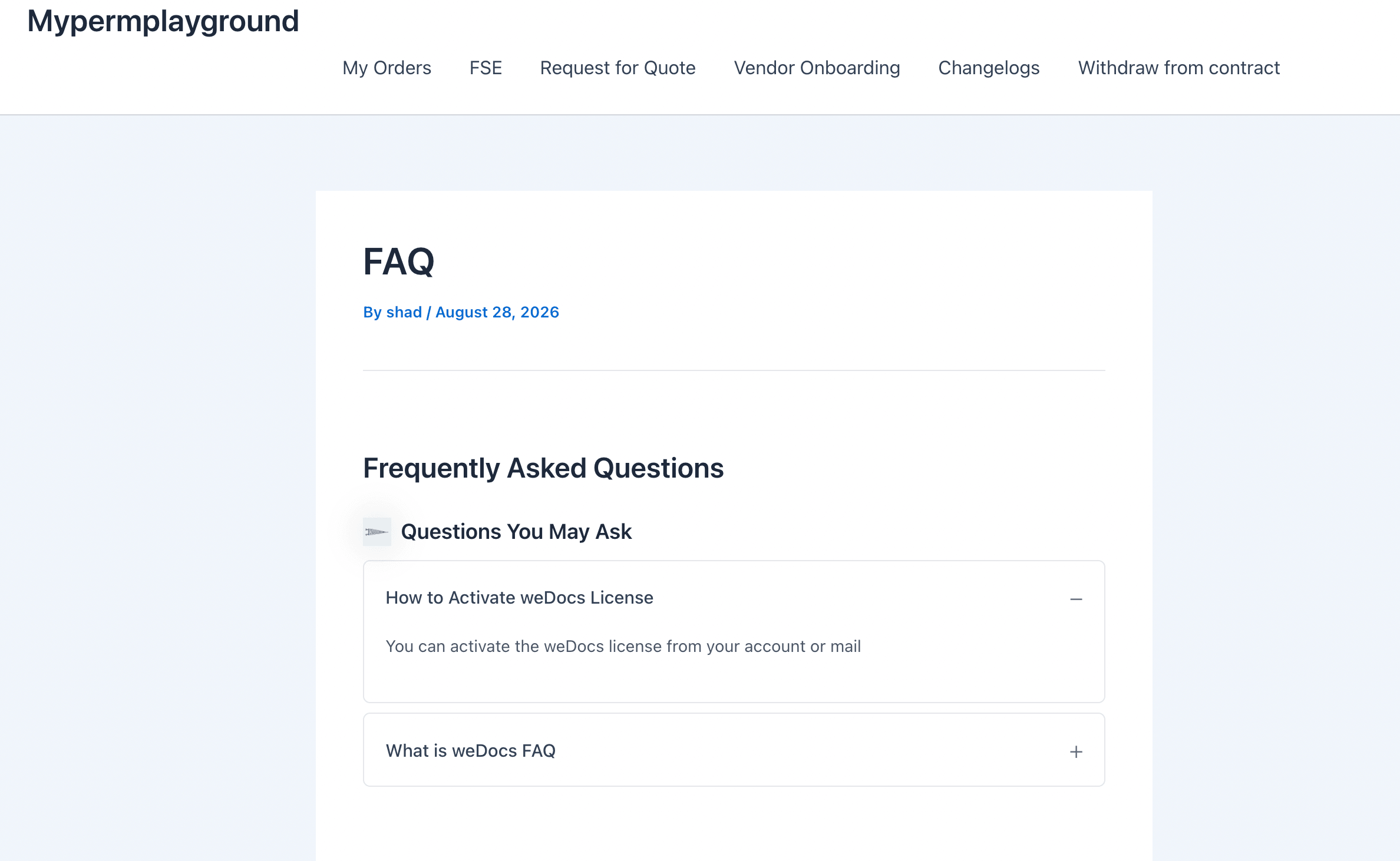
Visit the page to see the result. weDocs renders a Frequently Asked Questions heading, then each active group with its icon and title, then the questions as an accordion below it.
A question with Keep It Open By Default switched on shows its answer straight away and displays a minus sign. Every other question stays collapsed behind a plus sign until a visitor clicks it.
Good to Know
- Groups that are switched off, and groups with no questions in them, are skipped entirely on the front end.
- You can use the shortcode more than once on a site. Set different
groupvalues to show different sets of questions on different pages. - Deleting a group removes the questions inside it, so duplicate the group first if you want to keep a copy.